Who and What is Kit?
Last updated: August 12, 2026
The Drumkit sidebar helps you generate quotes, build loads, schedule appointments, and more, all without leaving your inbox. This update introduces Kit, your newest companion, and a redesigned sidebar that makes everything Drumkit can do easier to navigate and act on.
What does this change look like?
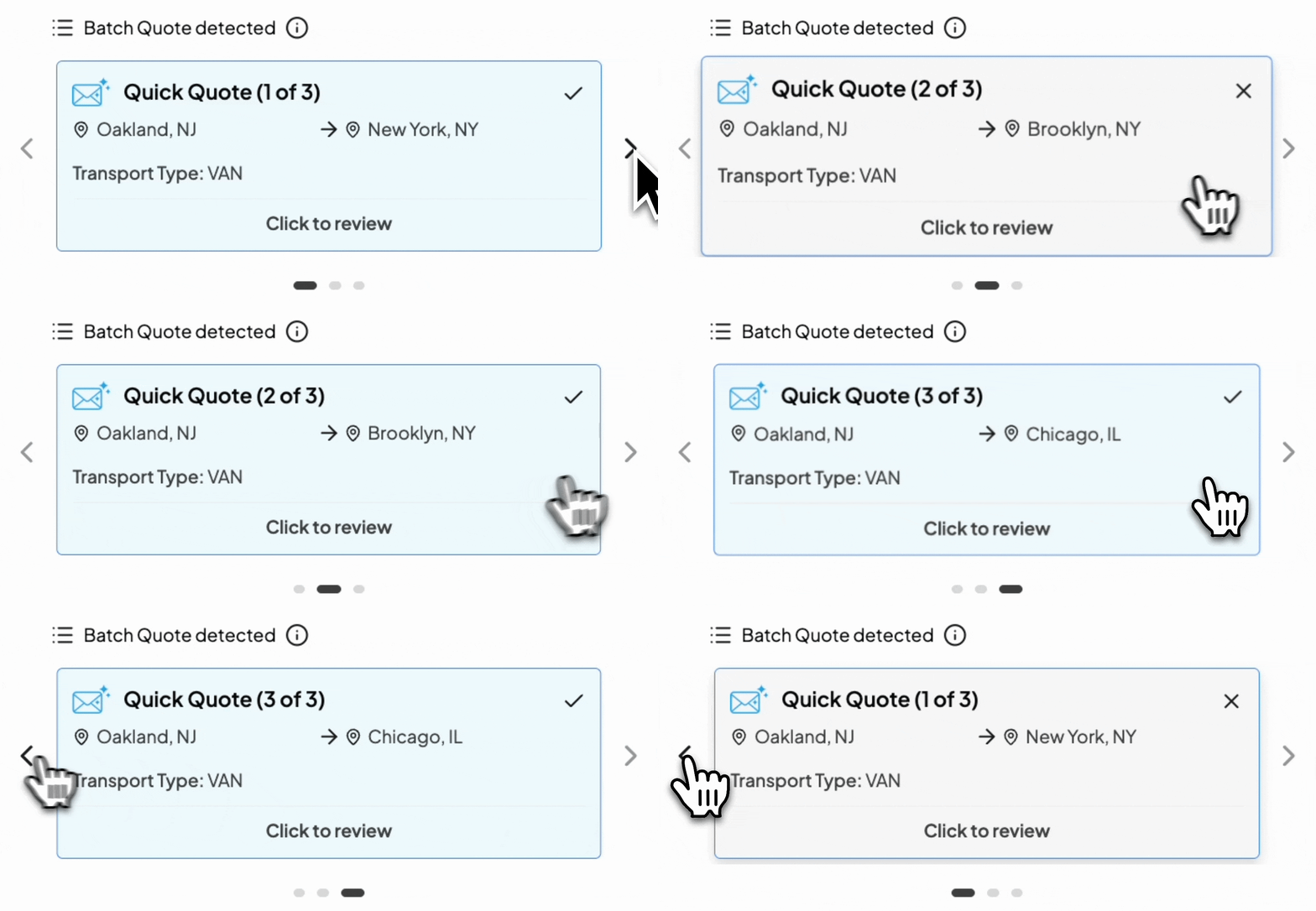
Previously, you may have noticed the carousel of blue boxes that automatically appears at the top of Drumkit's sidebar. This gave an at-a-glance summary of Drumkit's findings.
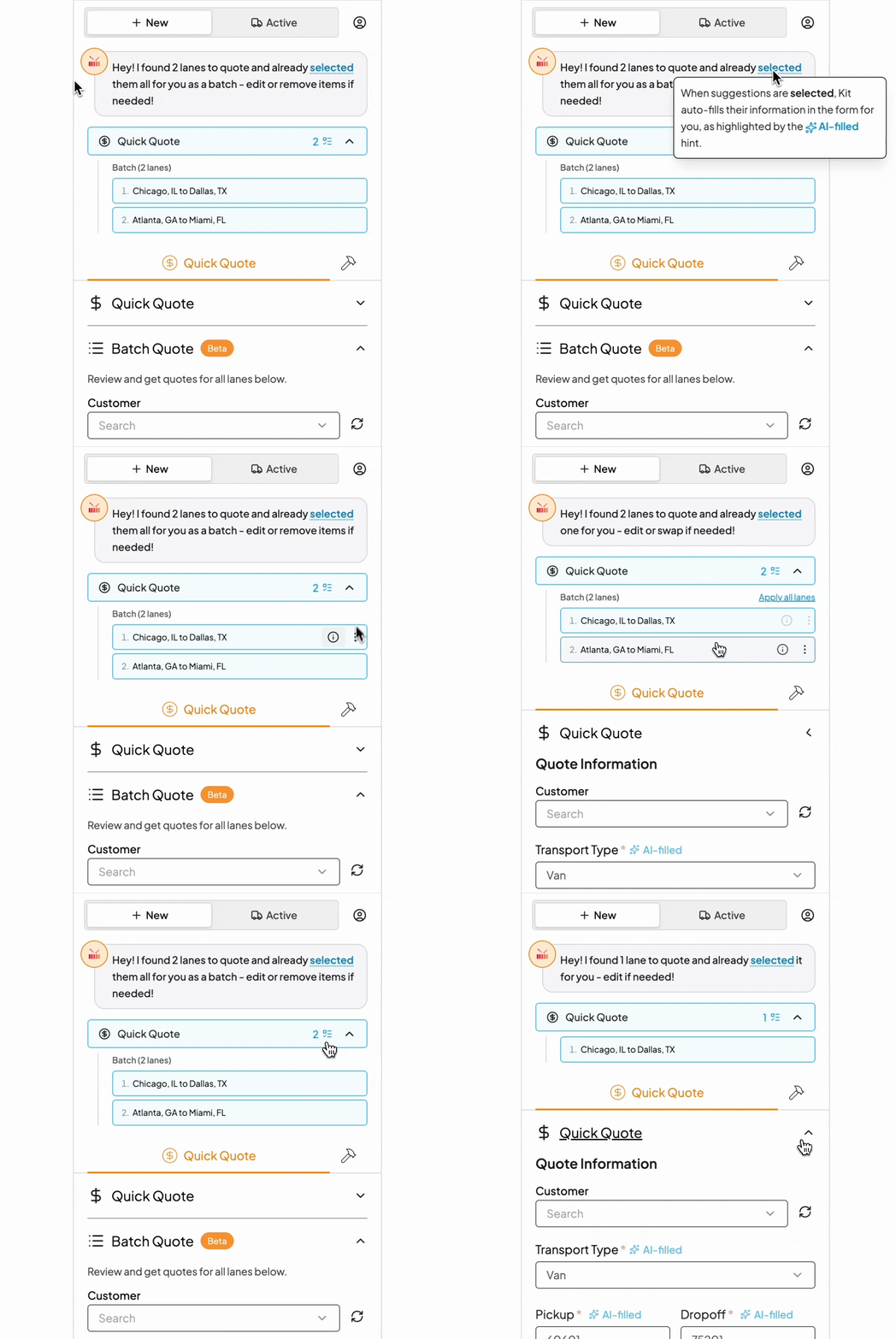
With Kit's introduction, this experience has been revamped into a conversational, assistant-style interface that tells you directly what Drumkit has found and what to do about it. Kit can surface suggestions across multiple pipelines (such as Quick Quote and Load Building), and you can freely toggle between them — the corresponding form auto-populates with with whichever suggestion you select.
An example of Kit with Batch Quote is shown below:
How do I work with Kit?
Once Kit identifies a suggestion, it guides you through reviewing and acting on it:
Kit's greeting: Kit opens with an actionable message, e.g. "Hey! I found one lane to quote and already selected one for you — edit if needed!" or "Hey! I found 1 appointment update for this load — select it to get started!"
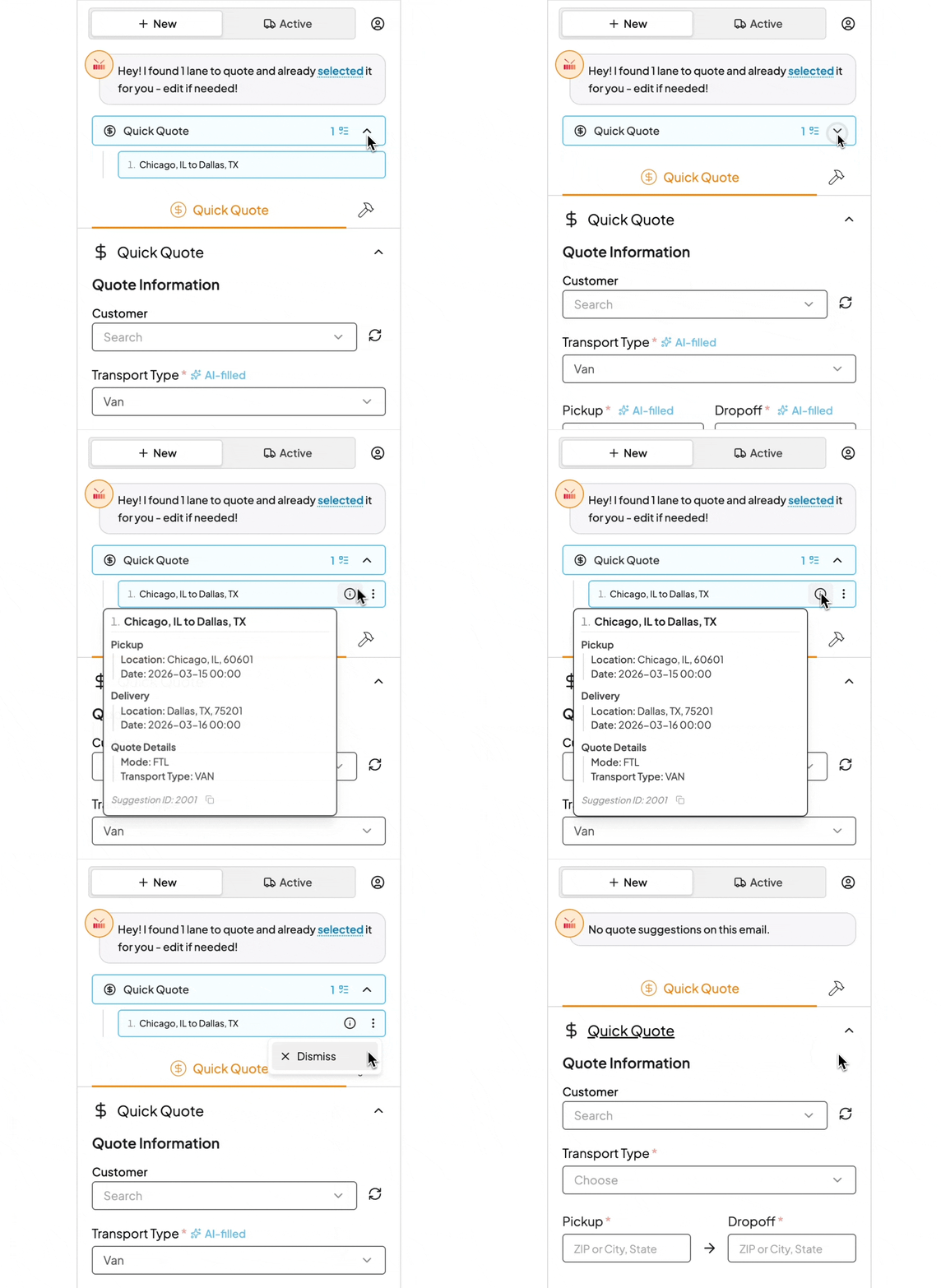
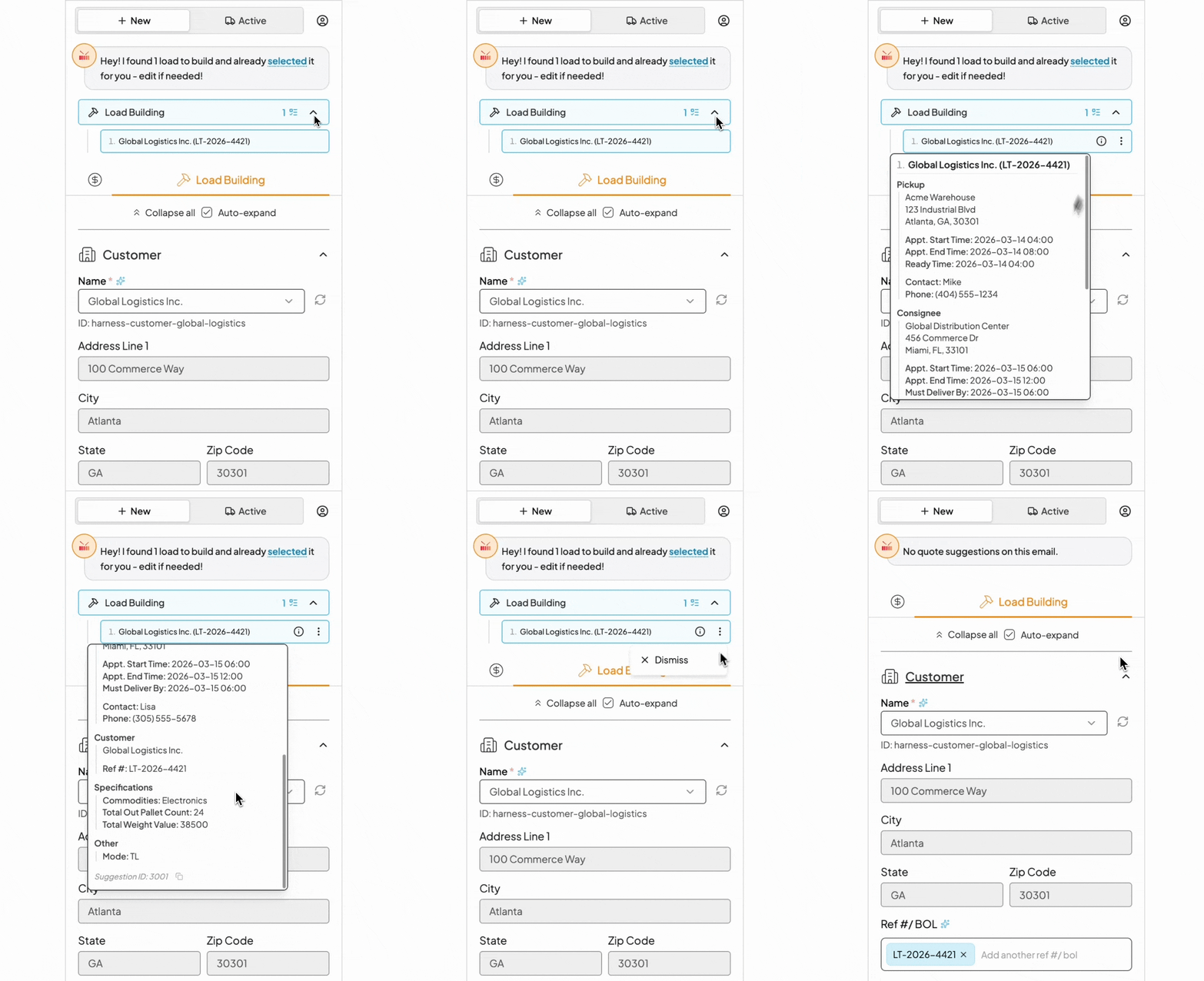
Reviewing selections: Hover over the ⓘ icon on a suggested lane or quote to pull up a scrollable preview of what Drumkit found — so the extra detail stays out of your way until you actually need it.
Act on it: In New, Kit auto-applies its suggestion. In Active, Kit shows the load info first and you choose whether to apply it. Either way, confirm the details in the form, then draft a message or press the pipeline's confirmation button.
Acting on an item marks it Done and auto-advances you to the next item in the same pipeline (e.g., staying within Quick Quote, not jumping to Load Building) — it won't cross into other pipelines.
If auto-advancing, the form clears and repopulates with that item's details.
Kit found a suggestion you don't need? Click the ⋮ (three-dot) menu on that suggestion and select Dismiss.
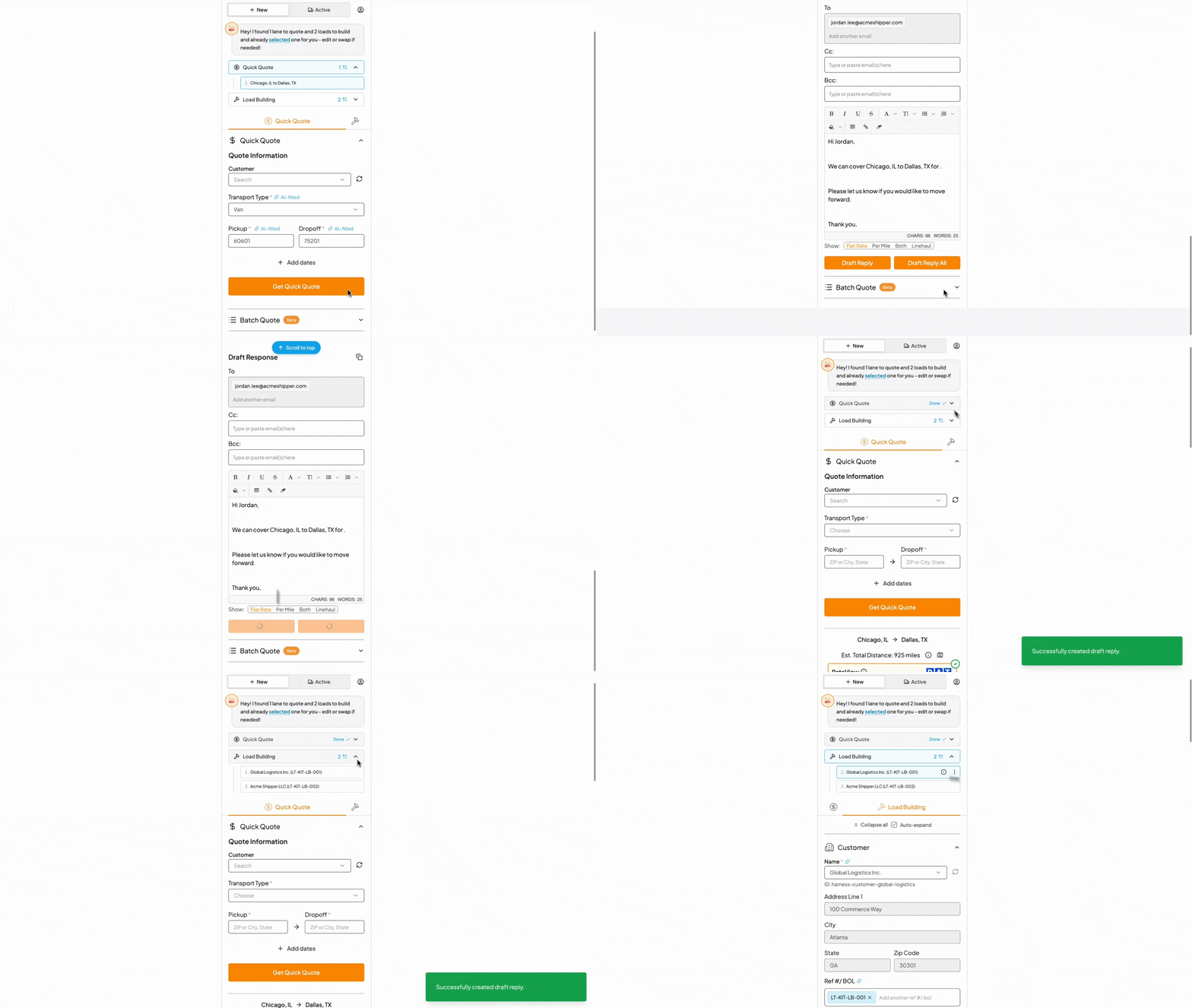
Note: Kit doesn't change how you've been using Drumkit. Rather, it adds clarity and intuition from the design standpoint.
Are those new labels atop the side bar?
Yes — the New and Active tabs now replace what was previously labeled Quotes and Loads.
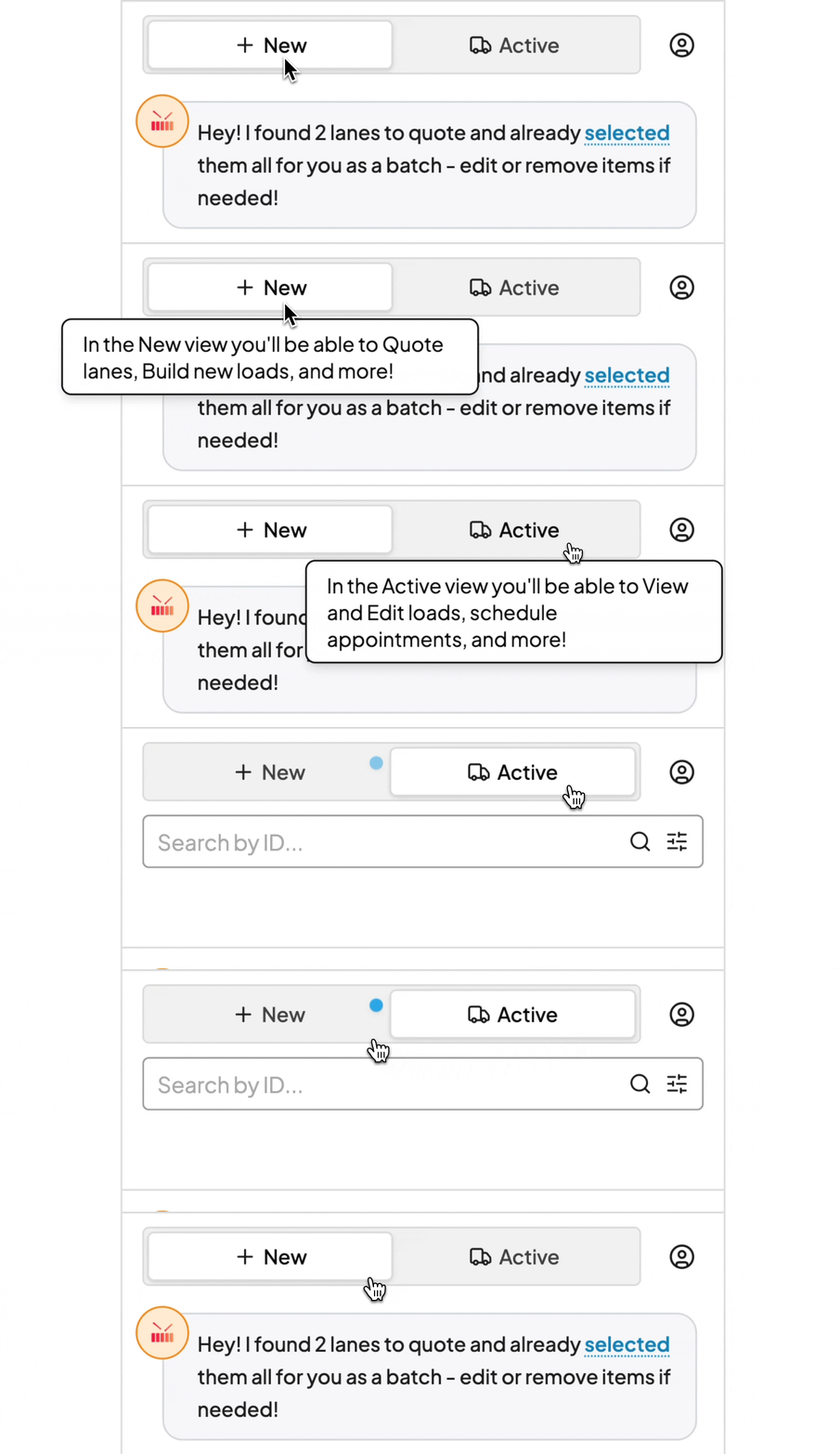
Hovering over either tab label will trigger a pop-up with a quick explanation of what it's for. As a reminder, the two tabs cover different stages of the load lifecycle:
New is where new activity starts — use it to generate quick quotes from incoming rate requests and build new loads from inbound load tenders. This was previously named Quotes.
Active is where existing loads live — use it to update or edit a load already in your TMS, schedule pickup and delivery appointments, track a shipment in transit, and manage outbound communications. This was previously named Loads.
To mirror this life cycle, New sits to the left of Active. This is a change to the ordering of Quotes and Loads before, made to increase intuitive design.
What's that pulse on the New or Active tab?
If you're in the Active tab and notice a pulse animation on the New tab, it means Kit detected something actionable in your email (e.g. a rate request or load tender worth acting on). Switch to the New tab to review Kit's suggestion.
The same applies in reverse: a pulse on the Active tab while you're in New means Kit found something related to a load already in progress (e.g. a status update or scheduling request).
How does batch quote work with Kit?
We have an article designated to answering this, given the detail. Access below 😊
📄 How does batch quote work with Kit?
What does Kit look like across Drumkit's New and Active tabs?
Kit with Quick Quote (New)
Hover over the ⓘ icon on Kit's suggestion to see what Kit found — pickup/delivery locations, dates, and mode — without opening the quote. From there, edit fields, swap lanes, or generate quotes as-is.
Kit with Load Building (New)
Hover over the ⓘ icon on Kit's suggestion — pickup/delivery addresses, appointment windows, customer, and specs — without opening the load. From there, edit fields, swap lanes, or build as-is.
Kit with Load Updating (Active)
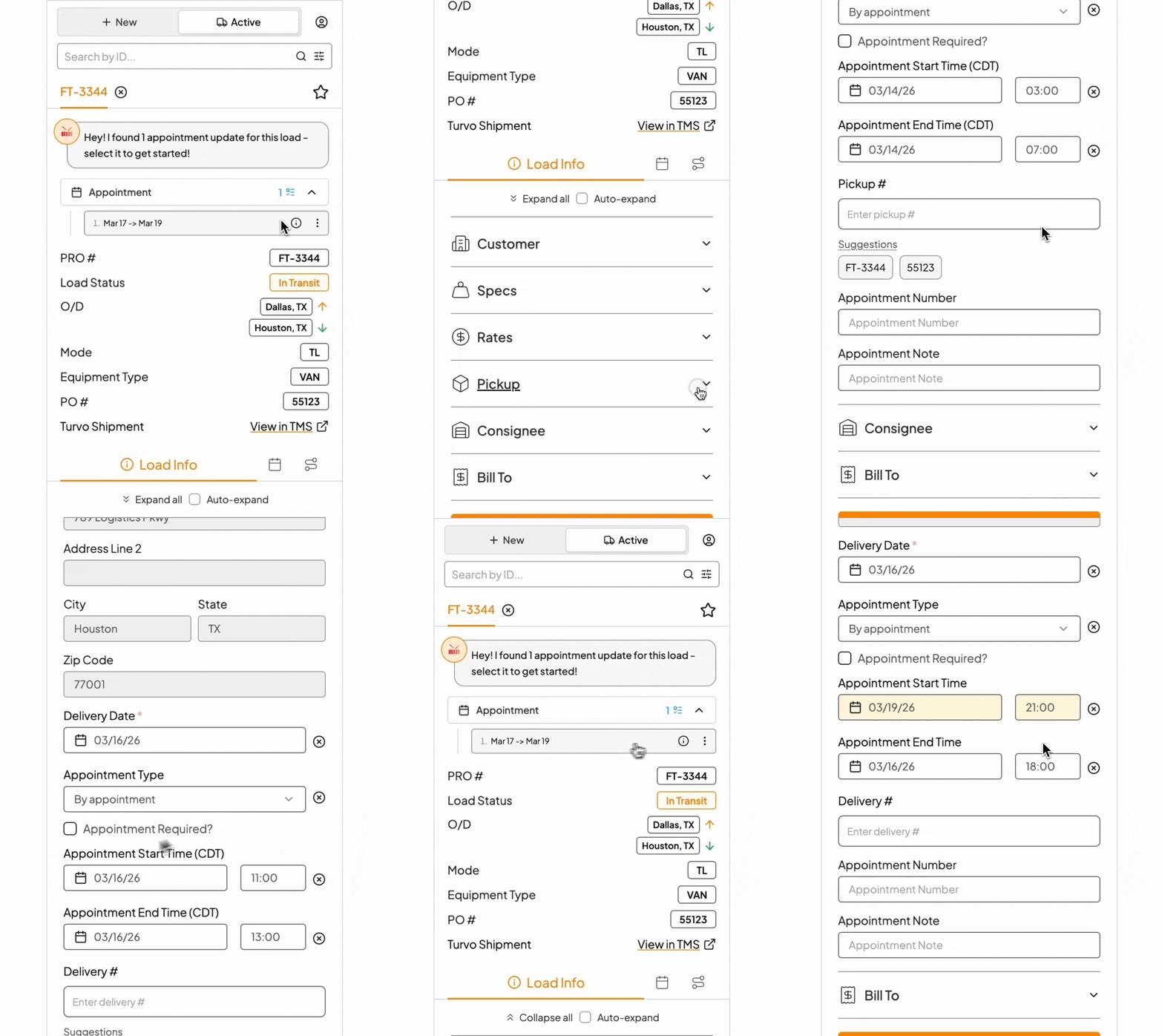
Hover over the ⓘ icon on Kit's suggestion — appointment date, time window, location, and more — without opening the load. From there, select to see what changes Kit has made, highlighted in yellow for clarity.
How does batch quote work with Kit?
Why Kit?
We know Drumkit works best when it fits naturally into how you already work. Kit turns that experience into a conversation: instead of scanning boxes to figure out what Drumkit found, Kit tells you directly and guides you to the next step. The result is a more visible, intuitive, vertical experience where Kit is your teammate.
What is the future of Kit?
This is the first version of Kit, and we're actively building on it. Expect more from Kit as we integrate it further into your workflow
F.A.Qs
Will Kit tell me when it finds no information?
Yes. If Kit can't find relevant information for a suggestion, it'll tell you that directly instead of showing its usual recommendations.
Will Kit auto-advance to the next suggestion after I've completed one?
Yes, but only within the same pipeline. Once you've copied a quote/rate or drafted a reply for the current suggestion, Kit marks it resolved, selects the next unresolved suggestion in that same pipeline, and populates the form with its details. You don't have to manually click to move on.
Kit won't jump you into a different pipeline though. For example, if you're quoting multiple lanes in Quick Quote, it advances to the next Quick Quote suggestion, not a Load Building suggestion, even if one's waiting. This keeps you from getting pulled into a different tab while you might still be finishing up, like double-checking rates you've copied to your clipboard.
Is there an easier way to scroll-to-top?
After you act on a suggestion, a blue "Scroll to top" button appears at the top of the sidebar. Click it to jump back up and see what's next.
As always, for suggestions and additional questions, reach out to us at support@drumkit.ai and our team will get back to you.