For IT admins: Microsoft Entra consent and deployment
Last updated: October 23, 2026
To roll Drumkit out on Microsoft 365, an Entra admin grants organization-wide consent once, optionally limits who can sign up with an Entra group, and optionally pushes the Outlook add-in to users. After that, each user signs up on their own.
Granting consent only makes Drumkit available at your organization. Drumkit can't access anyone's mailbox until that person signs up at app.drumkit.ai/signup themselves.
The three Drumkit apps
Drumkit registers three apps in your tenant. Users need all three to sign up and use the add-in.
App | Client ID | What it does |
|---|---|---|
Drumkit (backend) |
| Connects to Microsoft Graph so Drumkit can receive and process users' email for quoting, load building and scheduling. |
Drumkit Portal |
| Sign-in for the Drumkit Portal at app.drumkit.ai. |
Drumkit Outlook |
| The Outlook add-in (sidebar) in Outlook on the web, new Outlook, classic Outlook for Windows and Outlook for Mac. |
Step 1: Grant organization-wide consent
Option A: through sign-up (easiest)
- With an Entra admin account, go to app.drumkit.ai/signup and click Sign up with Microsoft.
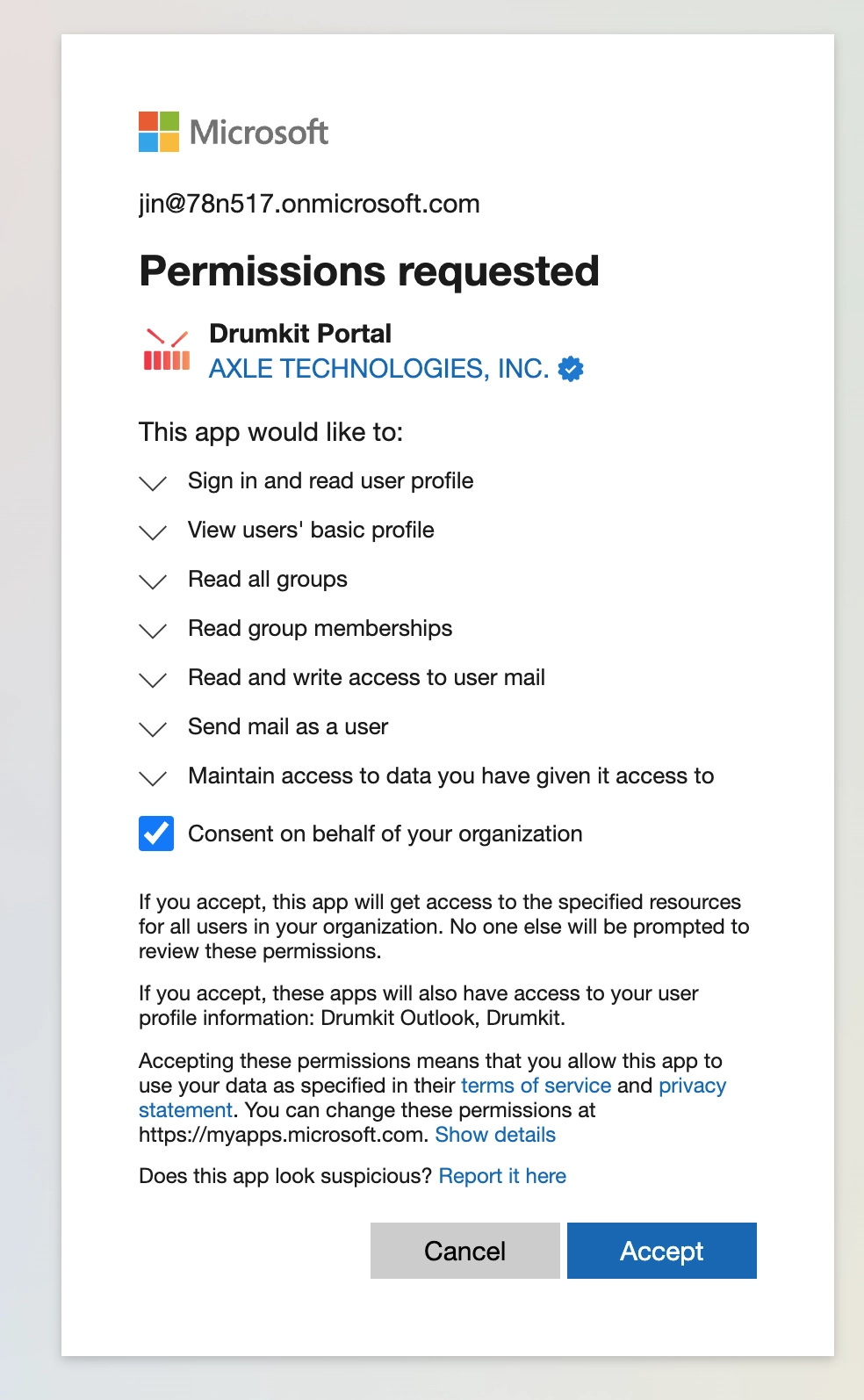
- Microsoft shows Permissions requested for Drumkit Portal (published by Axle Technologies, Inc.). The permissions are:
- Sign in and read user profile
- View users' basic profile
- Read and write access to user mail
- Send mail as a user
- Maintain access to data you have given it access to
- Check Consent on behalf of your organization and click Accept. Signing up this way grants consent for all three Drumkit apps at once.
Option B: admin consent URL
Use this if pop-up blockers or Entra policies stop Option A.
- Find your Tenant ID: go to entra.microsoft.com, click Overview, and copy the Tenant ID.
- Open this URL with
{tenant-id}replaced by yours, and finish the consent flow:
https://login.microsoftonline.com/{tenant-id}/adminconsent?client_id=f83c7168-4bb2-4de1-8f90-a4255453975fThis URL grants consent for the Drumkit Portal app only. Repeat it with the Drumkit and Drumkit Outlook client IDs from the table above, or have an admin sign up through Option A, which covers all three.
Once consent is granted, the three Drumkit apps appear under Enterprise applications in Entra, and users can sign up without asking you each time.
Step 2 (optional): Choose who can sign up
Everyone at your organization. In Entra, go to Enterprise applications, open each of the three Drumkit apps, go to Properties and set Assignment required? to No. Save. This is the simplest setup.
Only certain users. Open each of the three Drumkit apps, go to Users and groups, click Add user/group, pick your Entra group and click Assign.
Assign the group to all three apps. If one is missing, users in the group will hit errors when they sign up or open the add-in.
To give a new hire access later, add them to the group. They can then sign up on their own.
Step 3 (optional): Push the add-in to users
Users can add Drumkit from Outlook themselves. To install it for them, use Centralized Deployment in the Microsoft 365 admin center (Microsoft's guide):
- Sign in to the Microsoft 365 admin center.
- Go to Settings > Integrated apps > Add-ins.
- Click Deploy Add-in and search for Drumkit.
- Choose a deployment method and the users or groups to deploy to, then finish.
Method | What happens |
|---|---|
Fixed (recommended) | Drumkit is installed for everyone you picked. It shows up in their Outlook apps with no action needed. |
Available | Drumkit is listed for those users to install themselves. |
Deployment makes the add-in available, but pinning it is up to each user. Point them to Install Drumkit in Outlook and pin it. Users still need to sign up at app.drumkit.ai/signup so Drumkit can read their mailbox.
FAQs
Consent is done, but a user still can't sign up.
Check that Assignment required? is set to No on all three apps, or that the user is in a group assigned to all three. If both look right, email support@drumkit.ai with the user's email address and the error they see.
What happens when a user changes their password or leaves?
A password change or revoked access can disconnect their inbox. They'll see a yellow banner in the sidebar asking them to re-link. See Sign in, sign up or reconnect. To remove a user who has left, email support@drumkit.ai.
Where can I read about how Drumkit handles our data?
Related