How do I manually update my Drumkit extension in Chrome?
Last updated: August 10, 2026
The Drumkit extension should update automatically, but if you're not seeing the latest features or fixes, you can trigger a manual update in just a few steps.
How to manually update
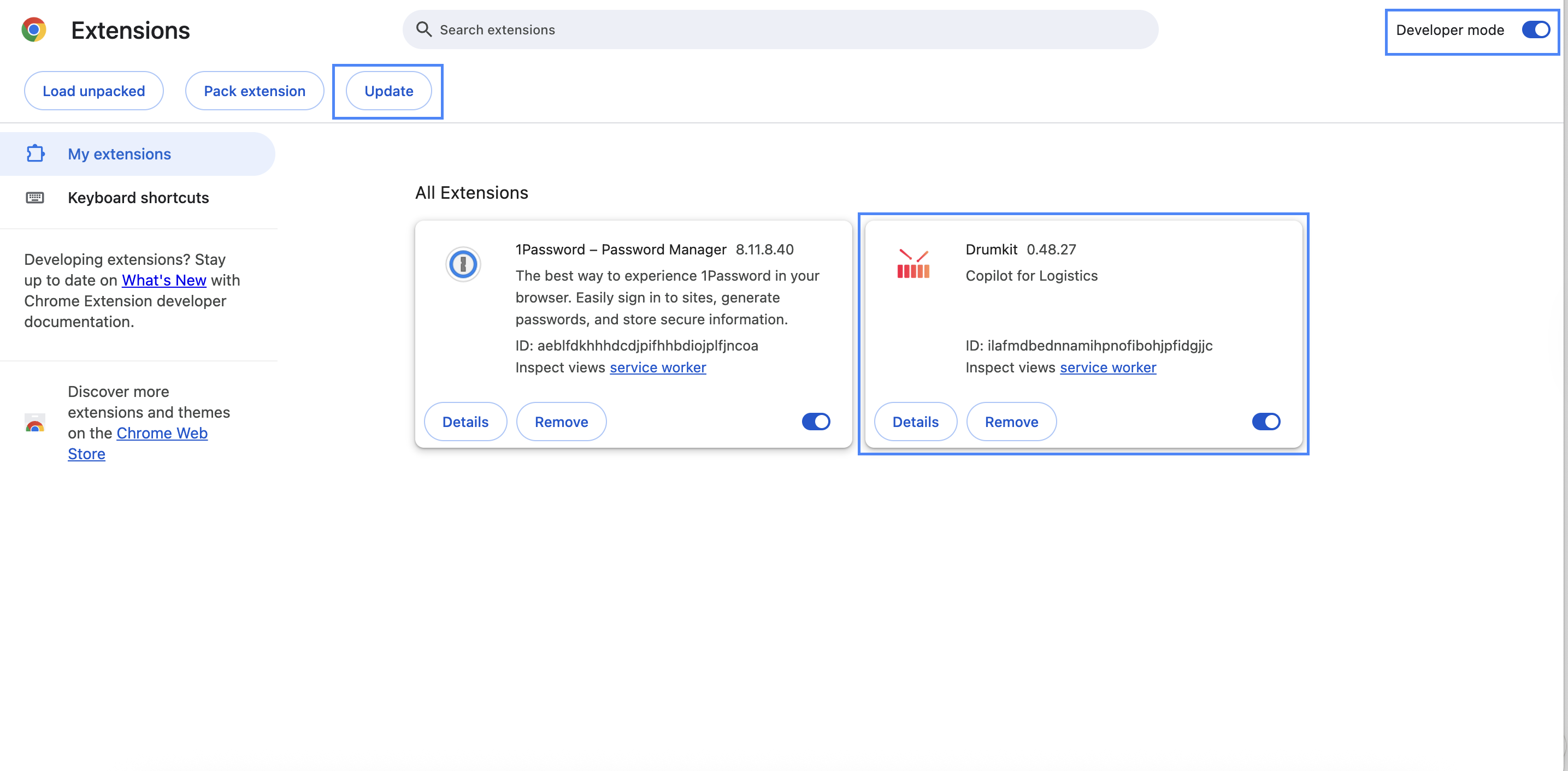
Open Chrome Extensions: Type
chrome://extensions/into your browser's address bar and press Enter.Enable Developer Mode: Toggle on "Developer Mode" in the top right corner of the Extensions page — this will reveal the version number for each of your installed extensions.
Check Your Version: Locate the Drumkit extension and confirm you're running v0.49.0 or later.
Update if Needed: If you're on an older version, click the "Update" button and Chrome will apply the latest version automatically.
What version should I be on?
You should be running v0.61.5 or later. You can confirm your current version by following steps 1–3 above.
Still not seeing the correct version after updating? Reach out to us at support@drumkit.ai and our team will get back to you.