Connect an Outlook shared mailbox
Last updated: November 16, 2026
Drumkit reads a shared mailbox, like quotes@ or loads@, the same way it reads a person's inbox. An IT admin turns on sign-in for the shared mailbox and signs it in to Drumkit once. After that, everyone with access to the shared mailbox in Outlook gets it in Drumkit too.
It's a one-time setup that takes the admin a couple of minutes per shared mailbox. Teammates don't need to do anything extra in most cases.
Before you start
Drumkit is approved for your organization. See For IT admins: Microsoft Entra consent and deployment.
The shared mailbox exists in Microsoft 365. See Microsoft's Create a shared mailbox.
Teammates who will use it have Full Access to the shared mailbox. Add Send As if they'll reply from the shared address. Microsoft's guide covers both under Which permissions should you use?
Step 1: Turn on sign-in for the shared mailbox
Microsoft blocks sign-in on new shared mailboxes by default. Drumkit needs the shared mailbox to sign in once so it can receive new mail as it arrives.
In the Microsoft 365 admin center, go to Users > Active users and click the shared mailbox.
If it says Sign-in blocked, click Unblock sign-in, follow the prompts and save.
Click Reset password and set a strong password. We suggest unchecking Require this user to change their password when they first sign in. Keep the password in your team's password manager. See Microsoft's Reset passwords.
The shared mailbox doesn't need a Microsoft 365 license for this. Microsoft's About shared mailboxes covers when one is needed (over 50 GB, archiving or litigation hold).
Step 2 (if your policy requires it): Keep MFA on the shared mailbox
Drumkit doesn't need MFA on the shared mailbox. If your organization requires MFA, turning on sign-in doesn't have to mean a password-only exception: the shared mailbox has its own Microsoft Entra account, so your MFA and Conditional Access policies apply to it like any other account. This is also one-time, since MFA is only needed for the sign-in in Step 3.
Register an MFA method that IT controls, such as Microsoft Authenticator on an IT-held phone or a security key. A Temporary Access Pass works well for the one-time sign-in in Step 3. See Microsoft's Manage authentication methods.
If a Conditional Access policy covers this account, allow all three Drumkit apps in it (Drumkit, Drumkit Portal and Drumkit Outlook). The client IDs are in the Entra setup article.
Nobody needs to sign in as the shared mailbox day to day. Reps keep using their own accounts and their own MFA.
Step 3: Sign the shared mailbox in to Drumkit
Open a private or incognito browser window so you aren't signed in as yourself.
Go to app.drumkit.ai/signup and click Sign up with Microsoft.
Sign in with the shared mailbox's address and password, and complete MFA if prompted.
Close the window once you land in Drumkit.
Drumkit recognizes it as a shared mailbox and starts receiving its new mail. It renews its access in the background, so you won't need to repeat this unless the connection is cut (see the FAQs).
If sign-in fails right after you unblocked the account or reset the password, wait a few minutes for Microsoft to catch up and try again.
Step 4: Teammates get the shared mailbox in Drumkit
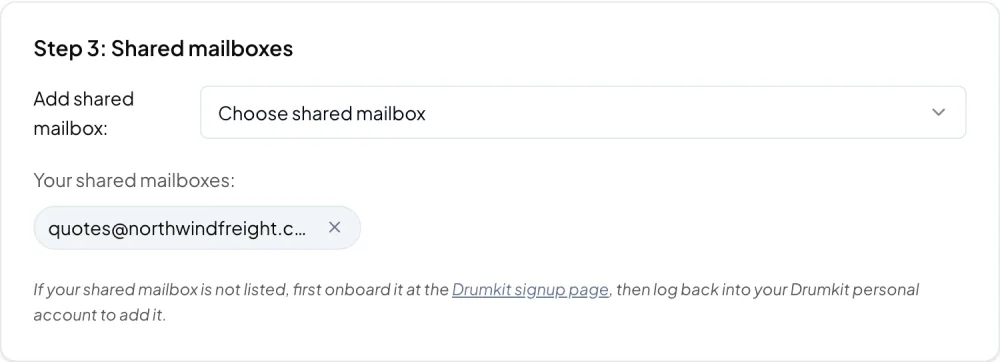
Teammates who sign up after Step 3. Drumkit adds every shared mailbox they have access to when they finish signing up. They'll see it on the Getting Started tab at app.drumkit.ai under Step 3: Shared mailboxes > Your shared mailboxes.
Teammates who signed up before Step 3. This is the only case where anyone needs to do something. On the same Getting Started tab, they pick it from Add shared mailbox. If it isn't listed or they see an error, they can go to app.drumkit.ai/relink, sign in again, and Drumkit adds it for them.
To use Drumkit on shared mailbox emails in Outlook, they open the shared mailbox in Outlook as usual (Microsoft's Add a shared mailbox to Outlook on the web) and open the Drumkit sidebar on an email. If the sidebar doesn't pick it up, closing and reopening Outlook usually fixes it.
Blocking sign-in on the shared mailbox again, or resetting its password in the Microsoft 365 or Entra admin center, disconnects it from Drumkit. Repeat Step 3 to reconnect.
FAQs
Our security policy doesn't allow sign-in on shared mailboxes. What are our options?
Drumkit can't read a shared mailbox that can't sign in. If the concern is a password-only account, you can keep sign-in on and require MFA as in Step 2. If that's not an option, deliver the mail to your reps' own mailboxes instead (for example with a distribution list) and have each rep use Drumkit on their own inbox. Email support@drumkit.ai and we'll help you pick.
We already use Drumkit. Do we need to do anything before adding a shared mailbox?
Possibly. Shared mailboxes need permissions that older Drumkit setups didn't ask for. Have an admin open the admin consent URL in the Entra setup article again and approve, then do Steps 1 to 3. Teammates then go to app.drumkit.ai/relink to pick up the new permissions and their shared mailboxes.
A teammate sees "you do not have delegated access to this shared mailbox".
They don't have Full Access to the shared mailbox yet. Grant it in the Exchange admin center, give Microsoft some time to apply it, then have them add the mailbox again.
A teammate sees "Please first sign up for Drumkit with this shared mailbox email address".
The shared mailbox hasn't been signed in to Drumkit yet. Do Step 3, then have them add it again.
Drumkit says the address "is not a shared mailbox".
Microsoft has it set up as a regular user mailbox. Whoever owns that mailbox can sign up for Drumkit with it directly. To share it, convert it with Microsoft's Convert a user mailbox to a shared mailbox first.
How long does Drumkit stay connected?
Until something cuts it off: sign-in is blocked, an admin resets the password or revokes the account's sessions, or the account goes unused by Drumkit for about 90 days. Microsoft explains this in Refresh tokens. Repeat Step 3 to reconnect.
Related