Build a batch of loads from one email
Last updated: November 24, 2026
When a customer sends several loads at once, like a project list or a week of POs on one lane, Drumkit shows them together as one batch instead of a card per load. Check what's shared once, fix what differs on each load, and build them all with one click. Batch Load Build is in beta and turned on per team, sometimes only for certain customers, so ask your Drumkit admin if you don't see it.
Here's the kind of email we mean
From: Dana Price, Lakeshore Paper Co.
Subject: Project 106031 - 20 loads Green Bay to Joliet, week of 6/15
Hi team,
Please set up 20 loads of paper rolls for next week, 53' dry van, $2,150 each. Pickup at Mill 2 in Green Bay, deliver to our Joliet converting DC.
PO 4501-2201 - pick up Mon 6/15 07:00, deliver Tue 6/16 08:00, 41,800 lb, 26 pallets
PO 4501-2202 - pick up Mon 6/15 09:00, deliver Tue 6/16 09:00, 42,000 lb, 26 pallets
…
Thanks,
Dana
1. Open the email and the batch
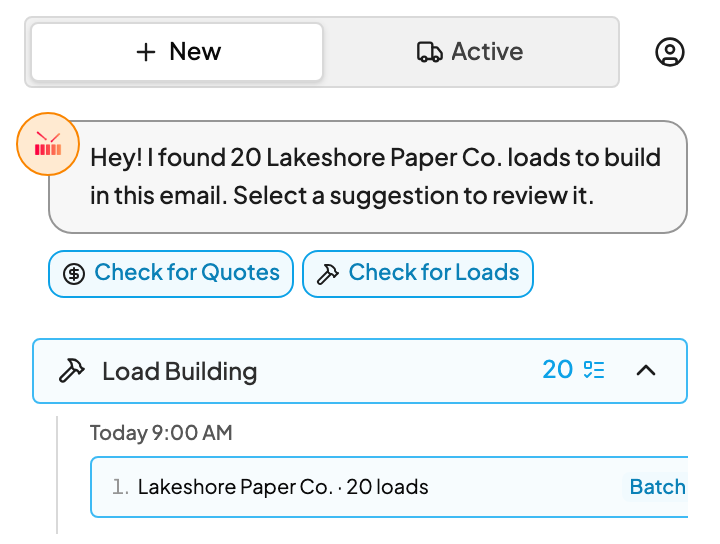
Open the email. Kit says how many loads it found, for example "Hey! I found 20 Lakeshore Paper Co. loads to build in this email.", and lists them as one item under Load Building, marked Batch: "Lakeshore Paper Co. · 20 loads". Click it, or go to the Load Building tab, to open Batch Load Build.
The top of the batch shows the customer, how many loads it has, and how many are ready, for example 20 ready.
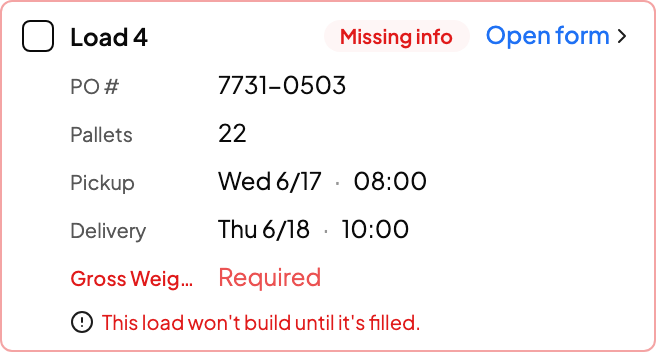
Kit checks every load before you open the email. A load marked Missing info is missing something your TMS needs, or has a value that looks wrong, like a pickup date in the past or a delivery before the pickup. It won't build until that's fixed.
2. Check "Same for all loads"
Everything the loads have in common shows once under Same for all loads, grouped like your TMS's Builder form. Change a value here and it changes on every load that doesn't have its own value.
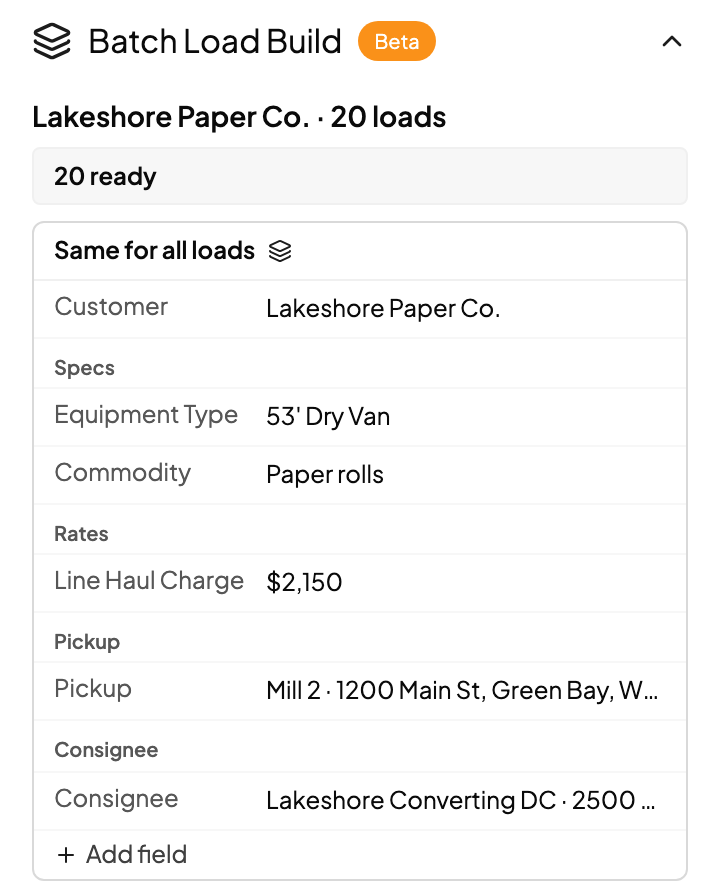
Change a value: click it, type the new value and press Enter. Press Escape to cancel. Drumkit shows what it was ("was …") with an undo button, until your next change.
Change the customer or a stop: click it. In Revenova, pick from your TMS's customers or locations; the list starts with the stops already in this batch, and typing searches the rest. In other TMSs, type the stop's address.
Add a field the email didn't give: click Add field, pick it from the list, then type its value. It applies to every load.
A value marked Required under Same for all loads is missing on every load. Fill it in once here and every load gets it.
3. Fix what's different on each load
Under Each load · only what's different, each card (Load 1, Load 2…) shows its PO and whatever isn't shared, like its weight, pallets and pickup and delivery times.
Quick edit: click any value on a card, type and press Enter. Only that load changes, and the card shows the old value struck through with an undo button.
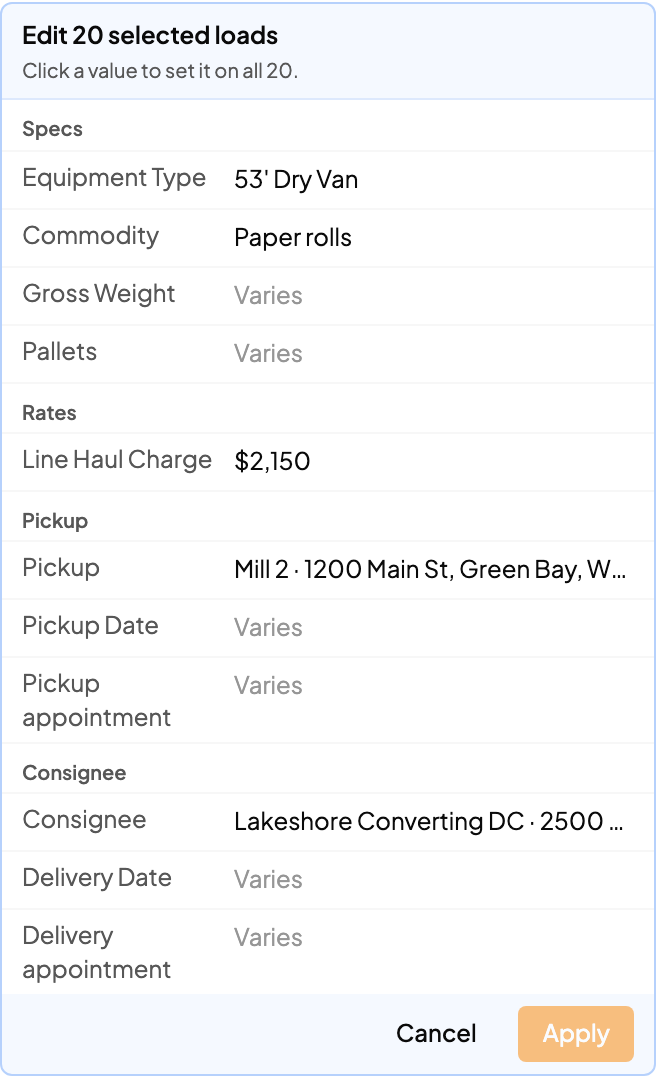
Change several loads at once: check the loads (or Select all), then click Edit selected. Each field shows the value the selected loads share, or Varies when they don't. Click a value, change it and click Apply. Only the fields you changed are applied. The PO and the customer aren't in Edit selected.
Remove loads you don't want built: check them and click the trash icon. Click Undo on the "Deleted N loads" notice if you change your mind.
A load marked Missing info shows the problem in red: a blank field as Required ("This load won't build until it's filled."), or the reason a value looks wrong. Click it and fix it.
Your edits and removed loads are saved in your browser until you build. Teammates don't see them, and removed loads can't be brought back after the undo notice closes.
4. Open one load in the full form (Revenova)
In Revenova, click Open form on a load to see it in the full Builder form, with everything Build all would send. Change anything there, then click All loads to go back, or step through the batch with Previous load and Next load. What you changed in the form is kept on that load; there's no save step. Built loads are skipped.
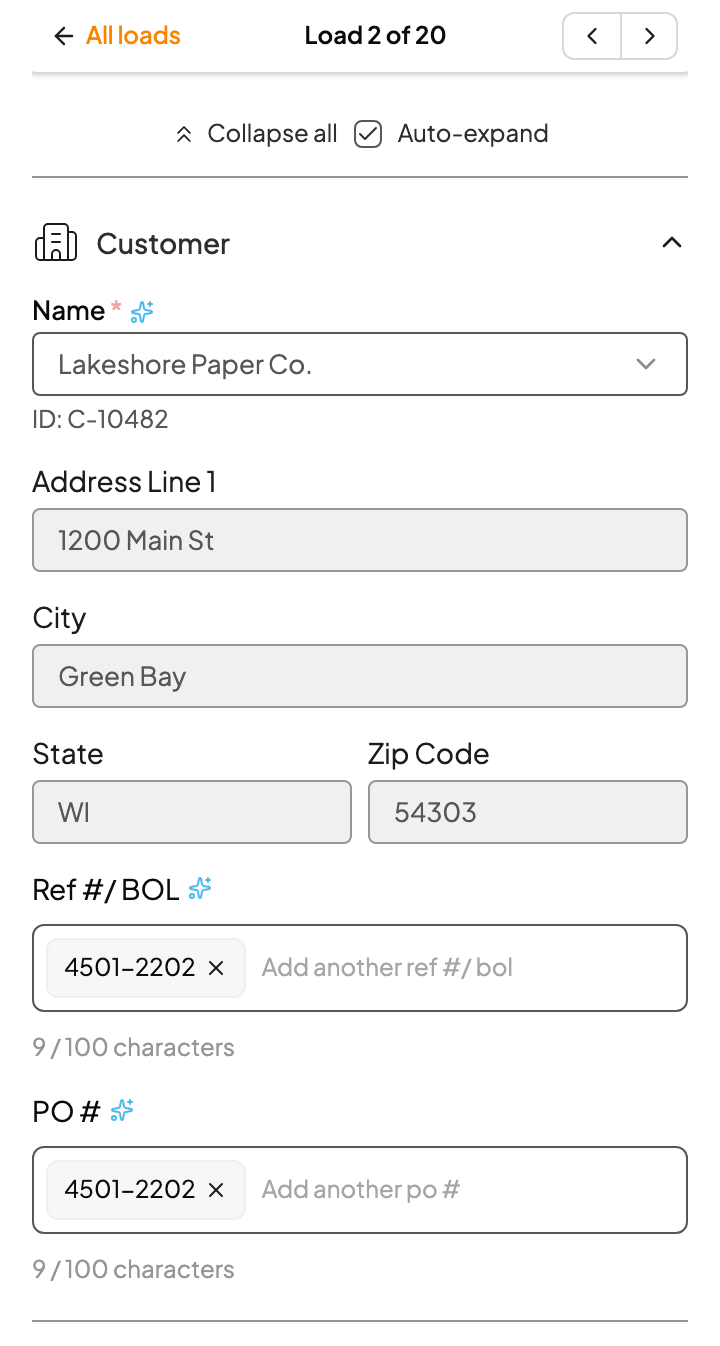
The customer is one for the whole batch, so changing it in one load's form changes it for every load.
You can build that one load from the form with Build Load. It's then marked Built in the batch and Build all leaves it alone.
5. Build them all
The button at the bottom says how many loads it will build, for example Build 20. Loads with missing info wait until they're fixed, and the button says how many, for example "1 missing info" (click it to jump to the first one). Drumkit first runs the same production TMS check as a single build, then creates the loads in your TMS.
Each load updates as it goes: Queued, Building, then Built with its shipment ID, or Skipped or Failed with the reason. You can keep working, switch emails or close Drumkit while it runs. Loads that finish while you're away move to Kit's Handled tab under Built.
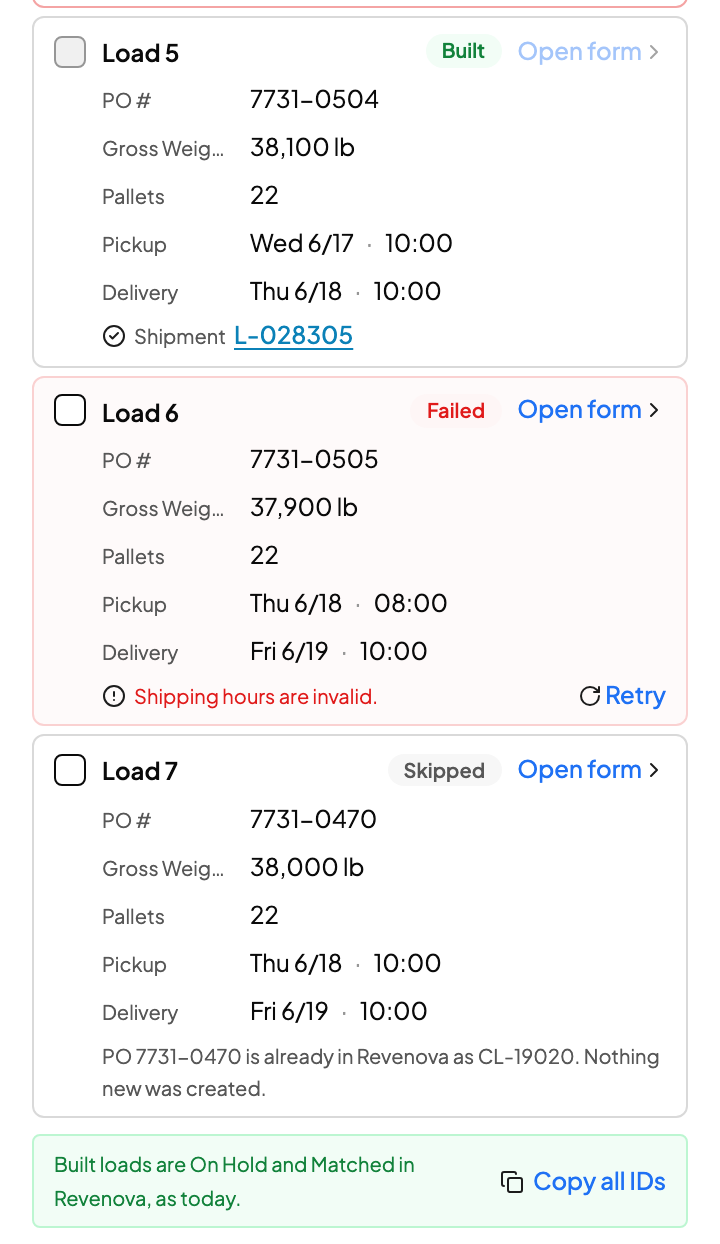
When it's done, click Copy all IDs to copy the shipment IDs built in this visit. Some TMS setups add a note there once for the batch, for example that built loads are On Hold and Matched in Revenova.
Up to 50 loads build per click. With more, the footer says "Builds 50 at a time · N more after this" and the rest wait for the next click. Failed loads are tried again on the next click too.
If a load didn't build
You see | What it means | What to do |
|---|---|---|
Skipped "PO … is already in (TMS) as …. Nothing new was created." | A load with that PO is already in your TMS. Drumkit checks the loads it has synced from your TMS, so one created there a few minutes ago may not be caught. | Nothing. The note names the existing load. |
Skipped "This load was already handled from its own card. Nothing new was created." | Someone built or dismissed this load from its own card. | Nothing. |
Failed with your TMS's message | Your TMS rejected the load and nothing was created. | Fix what the message says on that load, then click Retry. |
Failed "Missing equipment" | Your TMS needs an equipment type. | Set the equipment, then Retry. |
Failed "Creation could not be confirmed; check the TMS before building it again." | The TMS may have created the load before the connection dropped. | Check your TMS. If the load isn't there, build it in your TMS. Drumkit won't try this load again for 24 hours, so it can't create a duplicate. |
Failed "An earlier build of this load was interrupted…" or "This load is already being built, or an earlier build may have created it. Check the TMS." | An earlier attempt on this load may still be going, or may have created it. | Check your TMS before doing anything else. |
Failed "Build all stopped before this load. Try again." | The job stopped partway. | Click the build button again. Built loads aren't built twice. |
Missing info | A required field is blank or a value looks wrong. | Fix the field shown in red. |
FAQs
I don't see Batch Load Build.
It's in beta and turned on per team, sometimes only for certain customers. Talk to your Drumkit admin. An email or thread needs at least two loads you can open in Drumkit to show as a batch. An email with one load still opens the regular Builder form.
The email lists more than 50 loads.
Drumkit reads up to 50 loads from one email. Build the rest in your TMS, or ask the customer to split the list.
Does an edit in the batch change anything in my TMS right away?
No. Nothing is created or changed in your TMS until you click the build button, or Build Load on one load's form.
What if the customer sends changes after I start editing?
Kit reads the reply and updates the loads it changes. If the reply changes a field you'd already edited, the reply's value replaces your edit. See Batches across an email thread.
When should I use load cloning instead?
When Kit doesn't show a batch for the email, or you want an existing load from your TMS as the template. See Clone loads from an email.
Related