Quote an auto transport load
Last updated: November 3, 2026
If your team quotes auto transport, Quick Quote prices car moves with Super Dispatch. Open the request, check the vehicles Kit filled in, click Get Quick Quote, read the Pricing Insights card, set your markup and send.
Here's the kind of email we mean
From: Maria Lopez, Sunbelt Auto Remarketing
Subject: Auto transport quote - Los Angeles to Kansas City
Hi,
Can you quote one unit for me?
2021 Honda Civic, runs and drives
Pickup: Los Angeles, CA 90001, ready Thu 11/12
Deliver: Kansas City, MO 64101 by Mon 11/16
Open carrier is fine.
Thanks,
Maria
1. Open the sidebar
Open the email and open Drumkit. Kit says it found a lane to quote and has already selected it, and the Quick Quote form is filled in. You'll see the Auto Transport option only if your team has Super Dispatch connected; ask your Drumkit admin if it's missing.
2. Check the trailer and the vehicle
When the email is about moving cars, Kit sets Transport Type to Auto Transport and fills in the vehicle details. Fields marked AI-filled came from the email. Check them before you quote:
Trailer Type: Open or Enclosed. Kit picks Open when the email doesn't say.
Year, Make and Model: Make and Model are searchable lists from Super Dispatch's vehicle catalog. Pick the make first; the model list follows it.
Type: Sedan, Coupe (2 doors), SUV, Pickup (2 doors), Pickup (4 doors) or Van. Picking a model fills in its usual body type; change it if it's wrong.
Condition: Operable or INOP. Kit marks a car INOP when the email says it doesn't run or start.
Pickup and Dropoff: the locations and, if you have them, the dates.
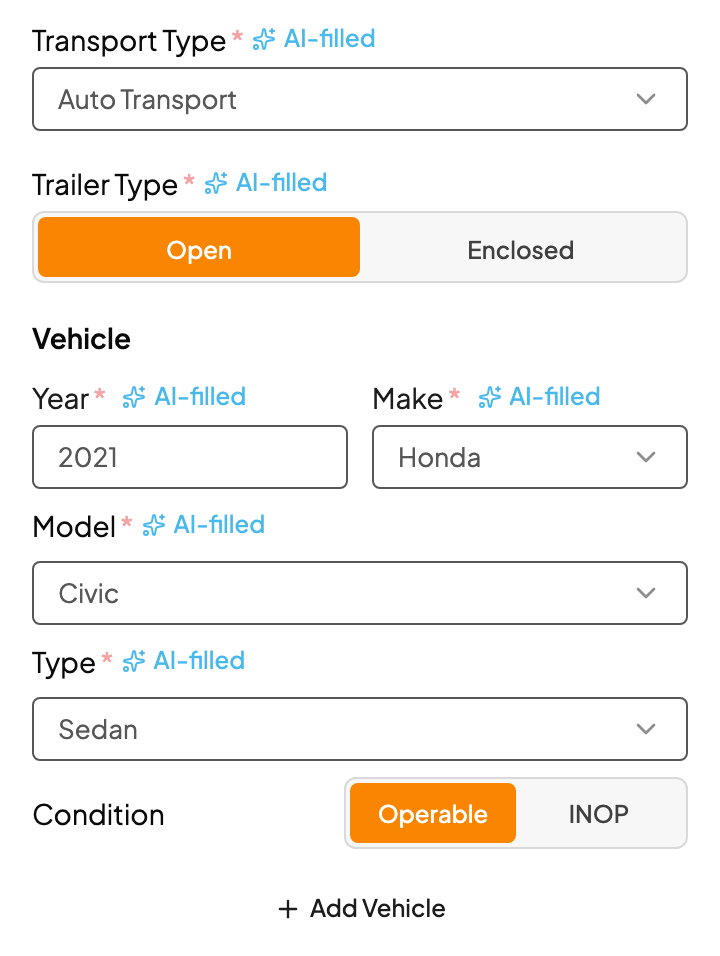
If Kit didn't pick up the request, choose Auto Transport under Transport Type and fill in the vehicle yourself.
3. Add more vehicles
For a multi-car load, click Add Vehicle under the last vehicle to add a row (Vehicle 2, Vehicle 3 and so on), then fill in its year, make, model, type and condition. A load holds up to nine vehicles, a full car hauler, so Add Vehicle goes away at nine. Click the trash icon next to a vehicle to remove it.
When the email lists several cars, Kit fills in a row for each, up to nine.
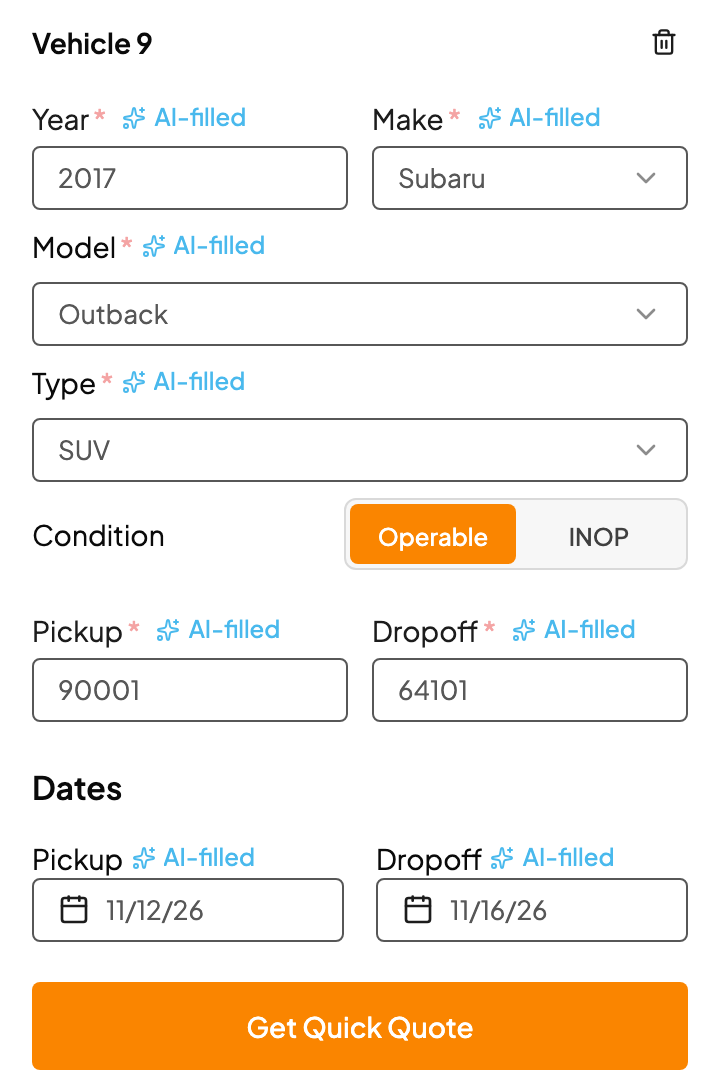
Each car gets its own row, even when several are the same model. Fill in every row before you click Get Quick Quote; a missing year, make, model or type stops the quote and marks the field.
4. Get the rate
Click Get Quick Quote. Drumkit sends every vehicle, its condition and the trailer type to Super Dispatch, which prices the whole load from pickup to delivery. Its Pricing Insights card shows:
Recommended price · Super Dispatch under the title, so you know where the number comes from.
Buy Rate: Super Dispatch's recommended carrier price for the load, with the per-mile rate.
Price Range: the low-to-high band. Hover it to see the range per mile.
Confidence: Super Dispatch's own score, shown as a percentage with a label: High (90% or more), Moderate (70% to 89%) or Low (under 70%). It says Unavailable when Super Dispatch doesn't send one.
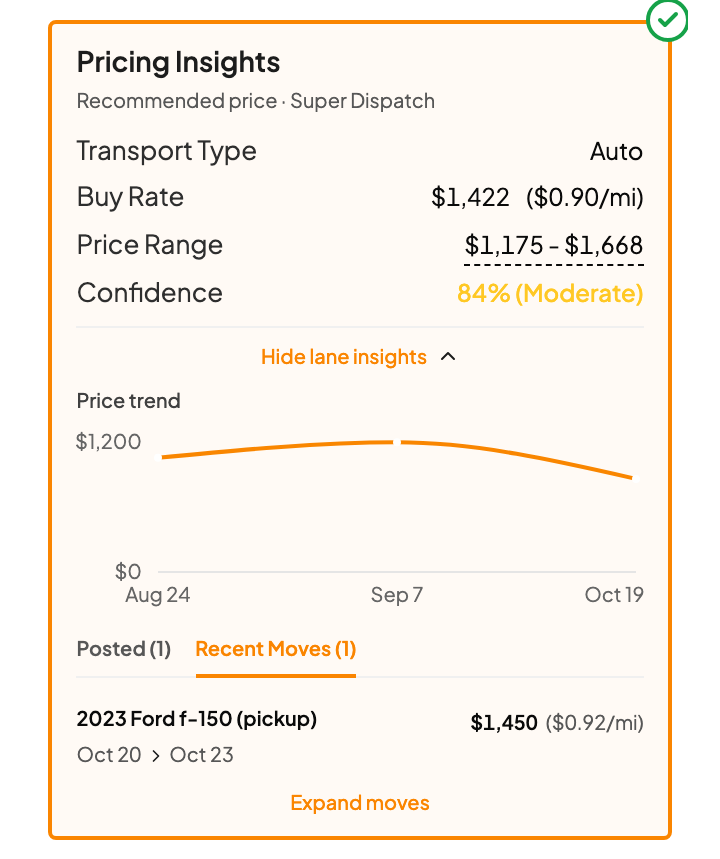
The card is selected (green check), so its buy rate flows into Rate Breakdown. If your team has TMS lane history, a Lane History card with what you've paid on this lane may show below it; click it to use that number instead.
5. Check the lane insights
Lane insights are open under the card. Click Hide lane insights to fold them away, or Show lane insights to bring them back.
Price trend: Super Dispatch's recommended price on this lane over recent weeks. Hover the line for a date and price.
Recent Moves: loads that carriers moved on this lane, newest first, with the vehicles, price, per-mile rate and the dispatched and delivered dates. This tab opens first.
Posted: loads posted on this lane right now, with the posted date. These can take a few extra seconds to load.
Each tab shows five loads at a time; use Prev and Next for more. A load with more than two cars shows the first one and a count, such as 8 vehicles. Click Expand moves (or Expand postings) to see every vehicle and the route.
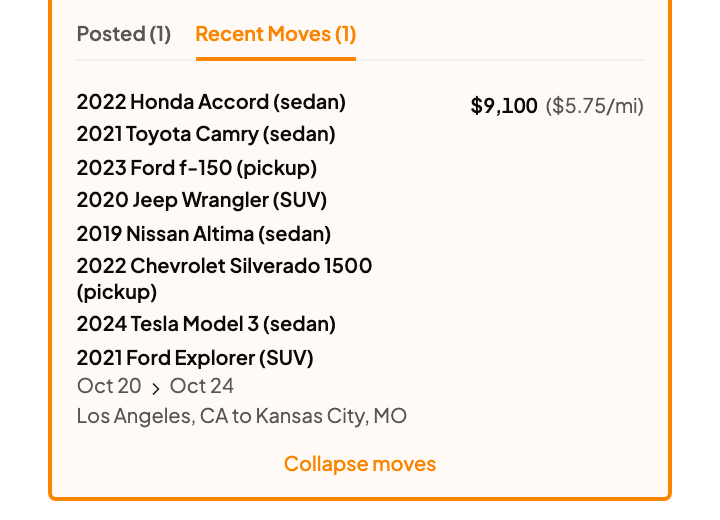
Recent Moves and Posted show every load on the lane, whatever the number of cars. Before you compare, check how many vehicles a load had: an eight-car move at $9,100 doesn't tell you much about one sedan.
6. Set your sell rate
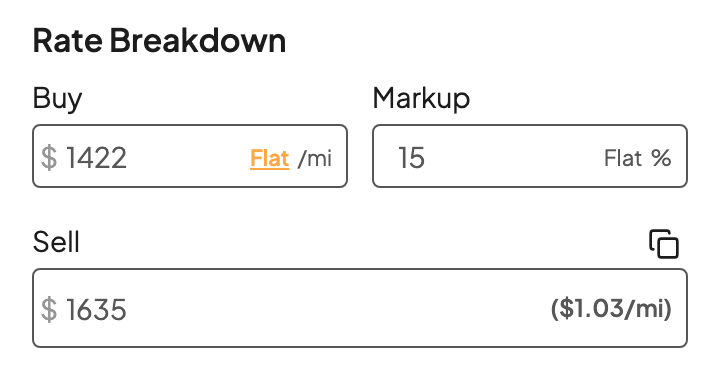
Scroll to Rate Breakdown. Buy is the selected card's price and your team's default markup is already added (15% in this example), so Sell shows what you'll quote. Change Markup for this load, or type the exact Sell rate you want. Super Dispatch's price is all-in, so there's no fuel surcharge to add on top.
For how markup, margin and a saved default work, see Set buy rate, margin and sell rate.
7. Send it
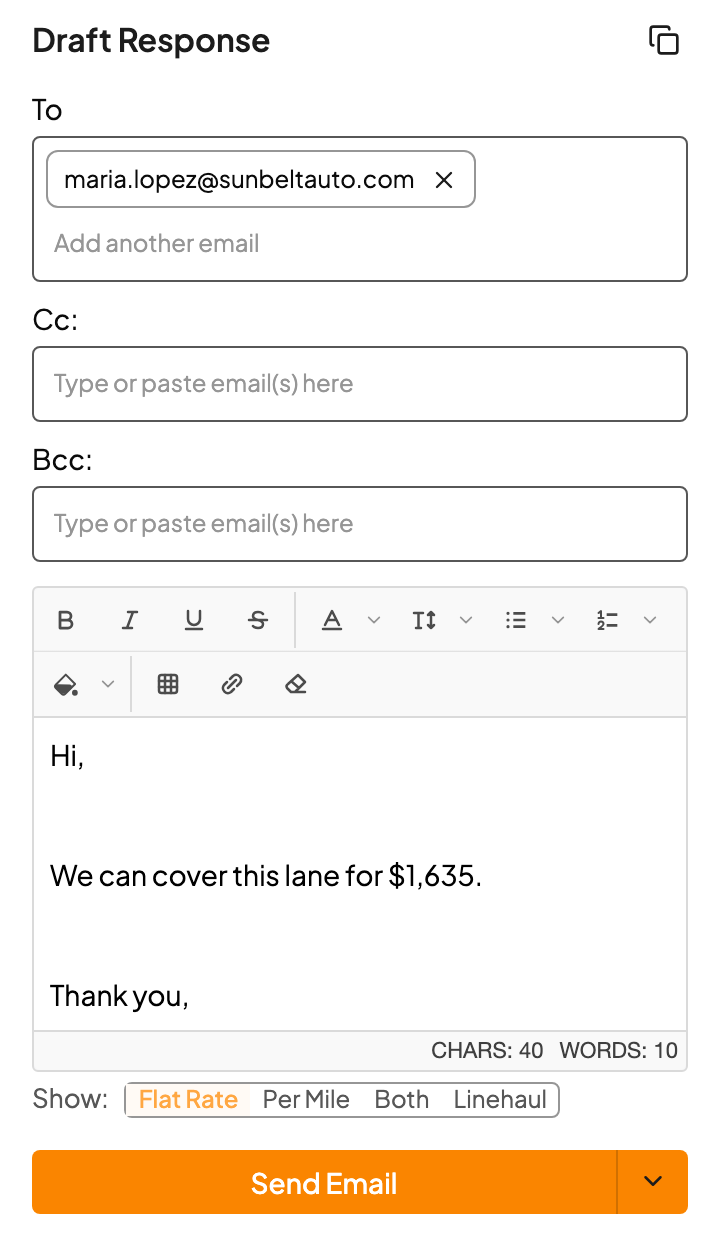
Under Draft Response, your reply is written from your team's template and addressed to the sender. Edit it if you like, then click Send Email, or use the arrow next to it to save a draft instead.
That's it. Kit marks the request Quoted and you're on to the next one.
If something goes wrong
You see | What to do |
|---|---|
Super Dispatch has no recommended price for this lane | Super Dispatch doesn't have enough data to price it. Check the locations and vehicles, then price it from your own history or your usual process. |
Super Dispatch only supports US pickup and delivery locations | One end of the lane is outside the US. Super Dispatch can't price it. |
Super Dispatch rate limit reached. Please try again later. | Wait a minute and click Get Quick Quote again. |
Failed to authenticate with Super Dispatch | The connection needs attention. Ask your Drumkit admin, or email support@drumkit.ai. |
Couldn't load the vehicle list. Refresh the sidebar and try again. | Click Retry next to the message, or refresh the sidebar. |
Postings and price trend are unavailable right now. | The price and Recent Moves are still good to use. Try Get Quick Quote again in a few minutes for postings and the trend. |
FAQs
I don't see Auto Transport in Transport Type.
It only shows when your company has Super Dispatch connected to Drumkit. Ask your Drumkit admin, or email support@drumkit.ai.
Kit got a vehicle wrong, or missed one.
Fix it in the form before you click Get Quick Quote: change the make, model, type or condition, or click Add Vehicle for a car Kit missed. Nothing goes to your customer until you send.
My make or model isn't in the list.
Type part of the name in the search box; the lists follow Super Dispatch's spelling (for example RAM). If you still can't find it, pick the closest match and set the right Type, since body type and the number of cars drive the price most.
Does an inoperable car change the price?
It can. Drumkit sends each car's condition, along with the trailer type, to Super Dispatch, so set Condition to INOP before you quote. If you change it after quoting, click Get Quick Quote again.
Can I filter Recent Moves or Posted to loads with the same number of cars?
Not today. Check the vehicle count on each row, and click Expand moves to see every car on a load.
Why is Recent Moves in a different order than in Super Dispatch?
Drumkit lists Recent Moves newest first and Posted by posting date, newest first. Super Dispatch's own site may sort them another way.
The price moved a little when I changed the ZIP.
Super Dispatch prices from the exact pickup and delivery locations, so a different ZIP in the same city can shift the number slightly. Use the ZIP from the email when you have it.
Do I see DAT or other freight rates on an auto transport quote?
No. Auto transport is priced by Super Dispatch only. If your team has TMS lane history, your own past loads on the lane can show too.
Can I see Central Dispatch rates?
Not in Drumkit today. Pricing Insights comes from Super Dispatch.
Does my reply list the vehicles?
The reply follows your team's template. If you want the year, make and model in it, add them in Draft Response before you send. See Send or draft your reply, and edit templates.
The email lists more than nine cars.
One quote holds up to nine vehicles, a full car hauler. Quote the first nine, then quote the rest as a second load.
Related