Deploying Drumkit with Microsoft Entra ID
Last updated: March 10, 2026
Last Updated: March 2026
Audience: IT Administrators
Tool: Drumkit Outlook Add-In
Overview
This guide walks IT administrators through deploying Drumkit for their organization using Microsoft Entra ID as the identity provider. Completing these steps will allow users at your organization to sign up for Drumkit and access the Outlook add-in.
Getting Started
Prerequisites
Before you begin, make sure you have:
An IT admin account with Microsoft Entra ID administrator privileges
Access to the Microsoft 365 Admin Center
DAT credentials ready for your team (required to get users up and running with quoting)
Step 1: Grant Organizational Consent in Microsoft Entra ID
Using an IT admin account, go to https://app.drumkit.ai/signup and click Sign up with Microsoft.
You will see a Permissions Requested prompt from Microsoft on behalf of Drumkit Portal (by Axle Technologies, Inc.). The permissions requested include:
Sign in and read user profile
View users' basic profile
Read and write access to user mail
Send mail as a user
Maintain access to data you have given it access to
Check the box for Consent on behalf of your organization and click Accept.
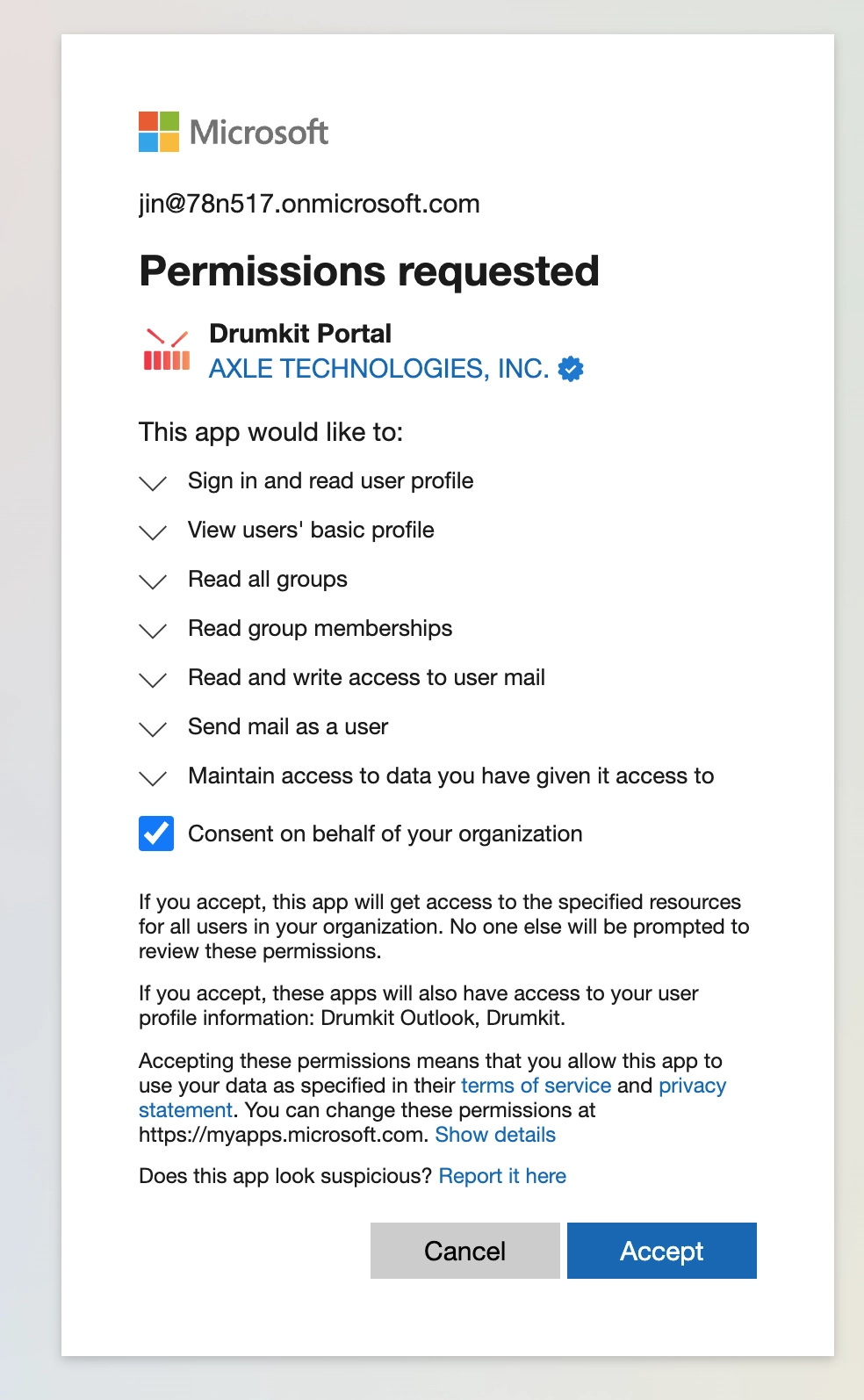
Important: Checking the organizational consent box only enables Drumkit to be installable by users at your organization. Drumkit will not have access to any individual's Outlook account until that person separately completes the Drumkit sign-up process themselves.
Once completed, you will be able to see the Drumkit apps registered under your organization in Entra ID. You can use Entra groups to control and limit which users are eligible to sign up for Drumkit.
Step 2: Deploy the Drumkit Outlook Add-In
Follow Microsoft's instructions for deploying an Office add-in via the Admin Center: https://learn.microsoft.com/en-us/microsoft-365/admin/manage/manage-deployment-of-add-ins
In the Admin Center, search for Drumkit in the Microsoft Marketplace.
Choose whether to deploy the add-in to:
All users in your organization, or
Specific groups defined in Entra ID (recommended if you want to limit access to certain teams)
Need Help?
If you have questions or would like assistance walking through these steps, contact the Drumkit product team at support@drumkit.ai.
For updates or corrections, please submit a request via support@drumkit.ai