Set margin and fuel rules
Last updated: November 12, 2026
Margin and fuel rules decide where each quote starts: a margin for a customer, a transport type or a lane, and a fuel surcharge for customers who send you their own fuel number. Rules apply to truckload quotes, single and batch. Set them up in Settings from the profile menu, or let Kit save one when you change a quote. Rules are in Outlook today, and Front and the Chrome extension get them in an upcoming update.
Change a rule later
A rule is never locked in. Say your Acme Shipper LLC rule is 15% and you want 12%. Pick whichever way is closest:
Where you are | What to do |
|---|---|
On a quote the rule applied to | Click the pencil next to Rule, type 12 in Markup (or Margin), click Save rule. |
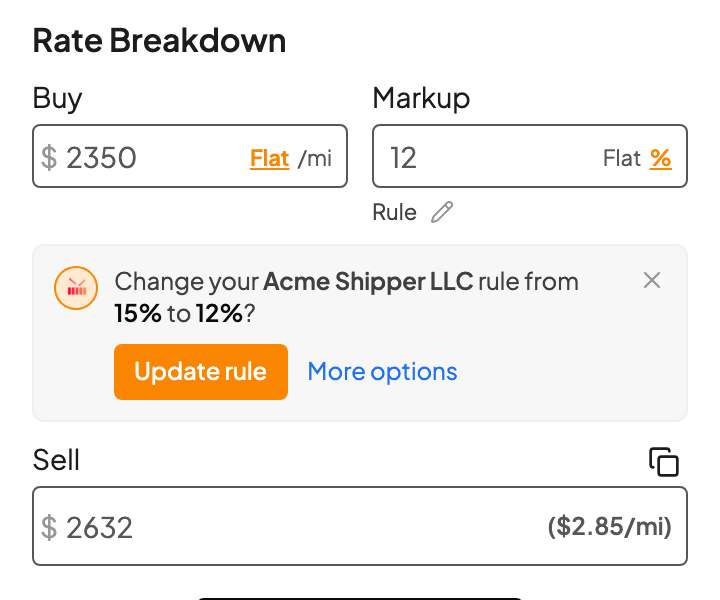
On a quote, typing as you go | Type 12 in the markup or margin field and click away. Kit asks "Change your Acme Shipper LLC rule from 15% to 12%?" Click Update rule. |
Anywhere else | Profile menu > Settings, click the rule, type 12, click Save rule. |
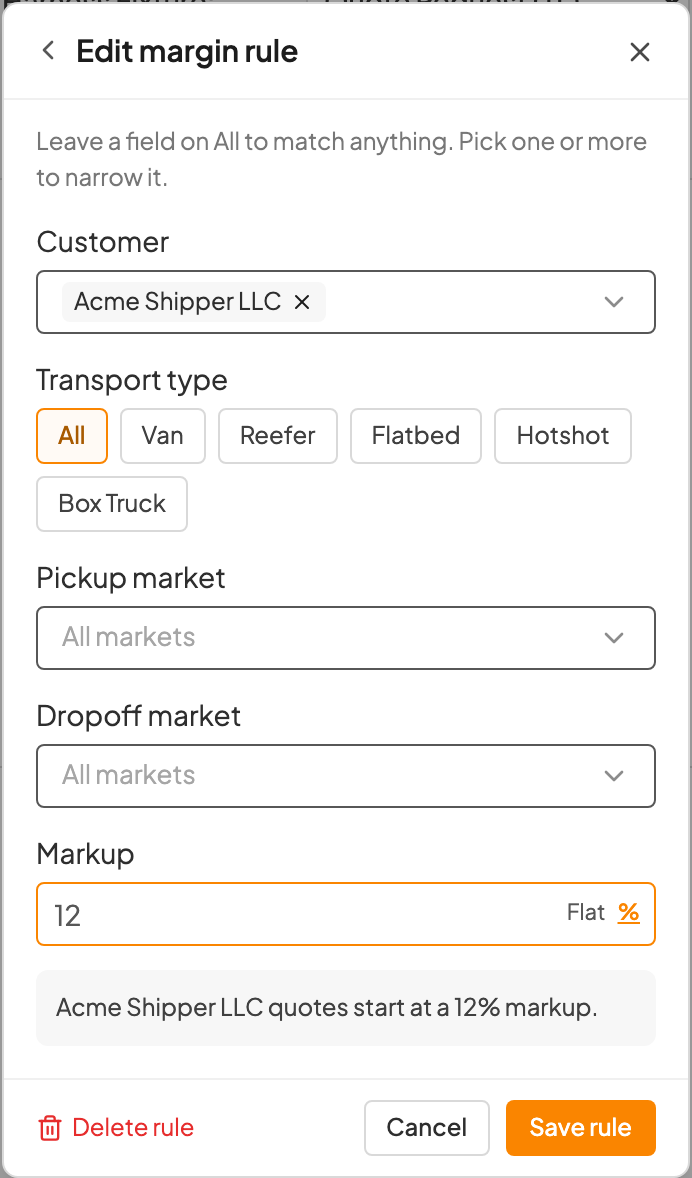
The change applies right away, including to the quote you have open. You'll see Updated margin rule. (or Updated Acme Shipper LLC. from Kit), with an Undo in case you clicked the wrong thing. To remove a rule, open it and click Delete rule.
Open Quick Quote settings
Click the profile icon at the top right of the sidebar and choose Settings. Quick Quote settings opens with two tabs: Margin and Fuel surcharge.
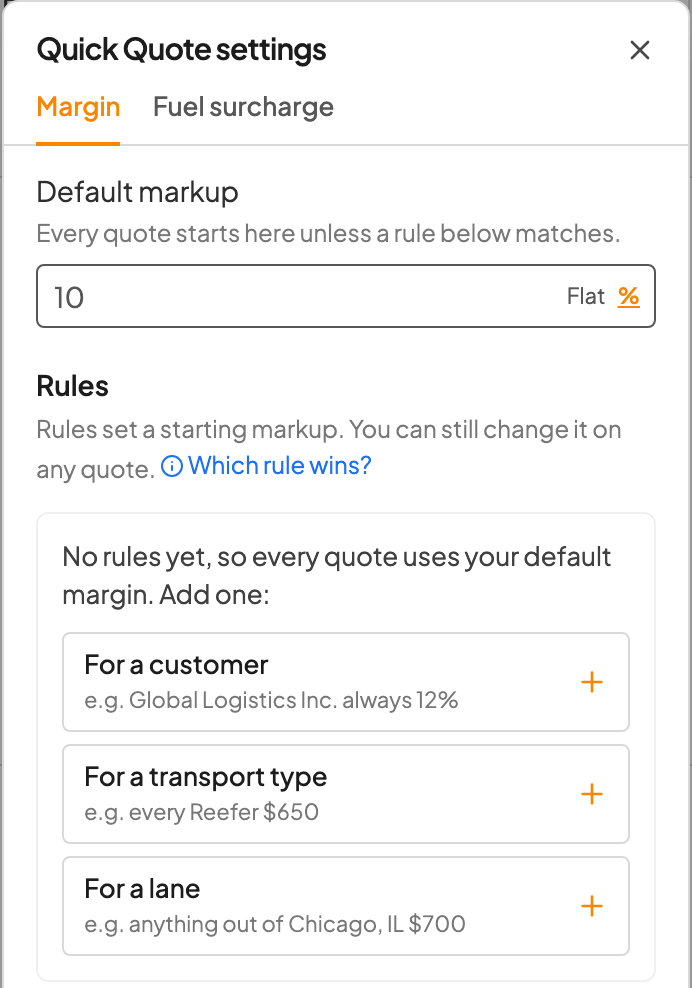
Your rules are yours. They change only the quotes you make, and teammates keep their own.
Set your default markup or margin
Default markup (or Default margin, if your company prices by margin) at the top of the Margin tab is where every quote starts unless a rule matches. If you've never saved one, it shows your company's default, so you can see what your quotes start at today. Type a number and pick Flat or %. It saves when you click away.
This is the same personal default you can save from a quote, and it applies in Batch Quote too.
Add your first margin rule
With no rules yet, the tab offers three ways to start: For a customer, For a transport type and For a lane. Once you have rules, click Add rule.
Click a starter. The rule opens with nothing picked; the line under each starter is only an example. The markup (or margin) starts at your default.
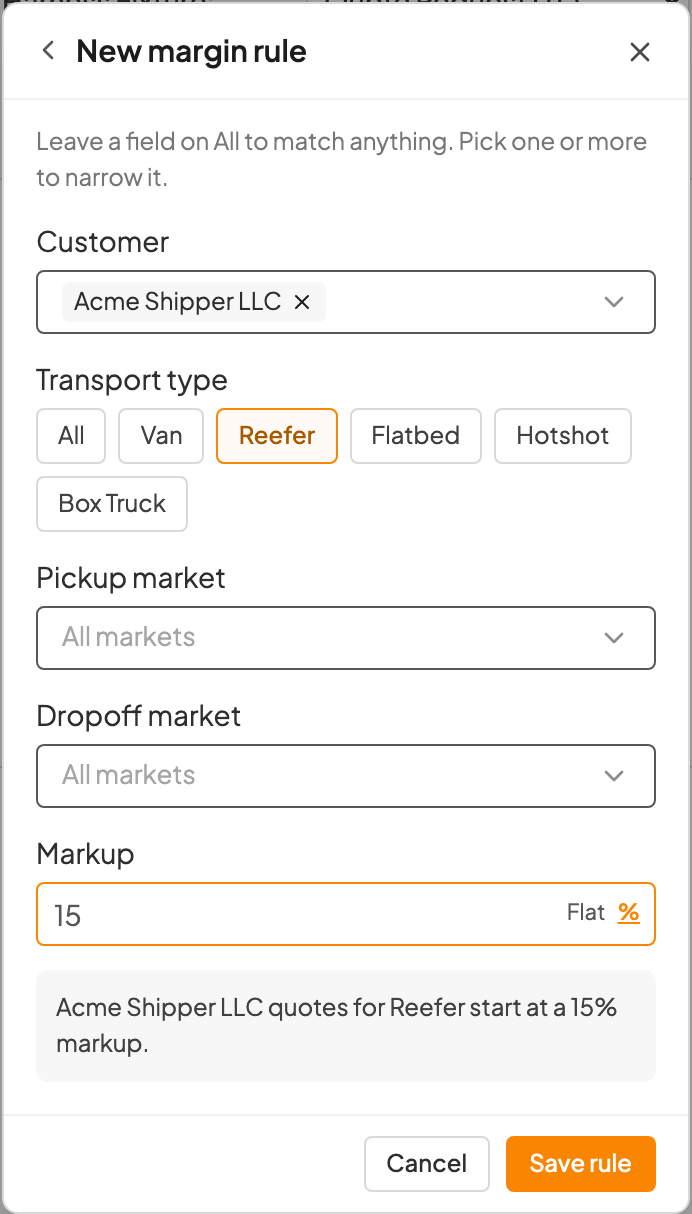
In New margin rule, pick the customer, transport type or market the rule is for: any of Customer, Transport type (Van, Reefer, Flatbed, Hotshot or Box Truck), Pickup market and Dropoff market. Leave a field on All to match anything. You can pick more than one value in a field.
Set the Markup (or Margin), in dollars (Flat) or %. A percent has to be under 100, and it can't be negative.
Check the sentence under the form, for example "Acme Shipper LLC quotes for Reefer start at a 15% markup."
Click Save rule. You'll see Saved margin rule., with an undo.
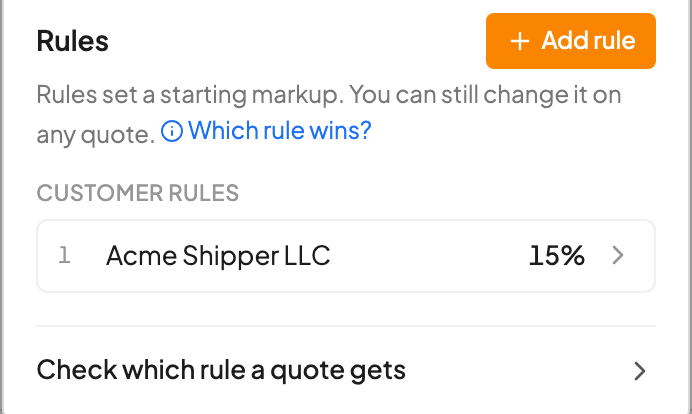
Your rules are listed under Customer rules, Transport type rules and Lane rules, numbered in the order a quote picks them. Click a rule to change or delete it. When the quote you have open matches a rule, that rule shows Applies to the quote you're on.
Lanes use DAT market areas, so a pickup market covers the whole area around a city, not one ZIP. Search by market name, state or the first three digits of a ZIP. A lane rule matches a quote's pickup and dropoff whether you pick a location suggestion or type a city and state or a ZIP. Customers come from your TMS, so customer rules and fuel rules need a TMS connected to Drumkit.
Which rule wins
When more than one rule matches a quote, the one highest on your list wins. Drumkit compares the fields in this order: customer, transport type, pickup market, dropoff market.
Any customer rule beats a rule with no customer.
A customer plus transport type rule beats the same customer alone.
If no rule matches, the quote starts at your default markup or margin.
Two rules that name the same fields and match the same quote can't both be saved. Drumkit names the rule it overlaps by its number and offers Open that rule so you can narrow one of them. To test your setup, open Check which rule a quote gets under your rules, pick a customer, transport type and lane, and see where the quote would start.
Click Which rule wins? on the Margin tab for a quick reminder of the order.
Margin or markup: what a percent rule does
Your company prices by either markup or margin, and Settings uses the same word as your quotes: Default markup and a Markup field on a rule, or Default margin and Margin. A percent rule fills in that field on the quote. With a $2,350 buy and a 12% rule:
Your quote shows | How Sell is figured | Sell |
|---|---|---|
Markup | Buy plus 12% of buy ($2,350 × 1.12) | $2,632 |
Margin | 12% of the sell price is profit ($2,350 ÷ 0.88) | $2,670 |
A flat rule works the same either way: a $300 rule makes Sell $2,650. To change which one your company uses, your Drumkit admin can email support@drumkit.ai.
Set a customer fuel rule
On the Fuel surcharge tab, Default fuel surcharge is where fuel comes from when no fuel rule matches. Drumkit pulls it for each quote, so you don't set a number here.
For customers who send you their own fuel number, add a customer fuel rule:
Under Customer fuel rules, click Add rule.
Pick one or more Customers. Each customer can be in only one fuel rule.
Type the Fuel surcharge per mile, up to $5.00.
Optional: pick a Price format in replies (Flat Rate, Per Mile, Both, Linehaul or Linehaul + FSC) if these customers always want the price written the same way. Leave it empty and you choose on each quote.
Check the preview of how replies will read, on a single quote or a batch, and click Save rule.
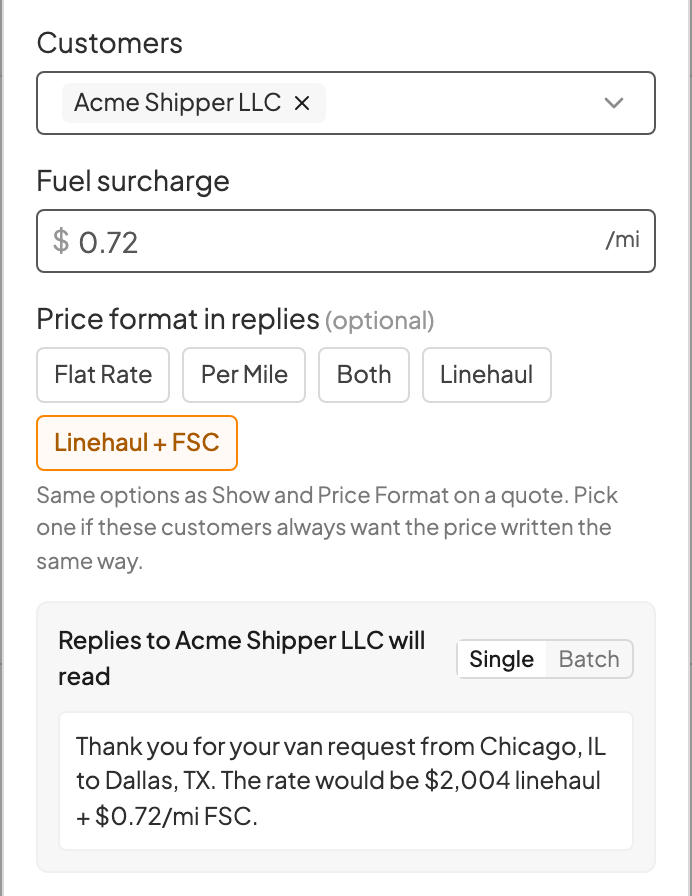
A fuel rule keeps its number until you change it. When the customer sends a new weekly fuel number, open the rule and update it, or type the new number on a quote and click Update fuel rule in Kit's message.
See a rule on a quote
When a rule sets the starting margin or fuel on a quote, you'll see an orange, underlined Rule label under the field in Rate Breakdown. It turns gray when you type your own number. Hover it to see which rule applied, for example "Applied your Acme Shipper LLC rule (15%)." Click Edit rule in the hover, or the pencil, to open that rule.
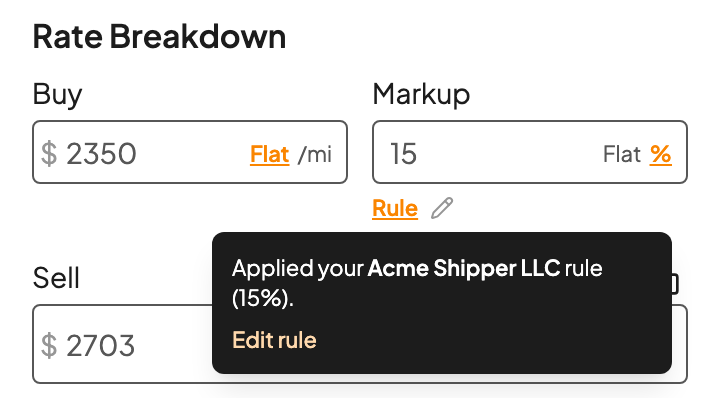
A number you type on a quote is for that quote only. It doesn't change the rule. Click Rule to go back to the rule's number.
For fuel, Rule sits next to the other fuel options such as DAT and DOE under Show fuel details.
If the fuel rule has a reply format, it's picked under Show: in Draft Response, with a Rule label there too.
Rules work the same in Batch Quote: each lane starts at the rule that matches it.
Let Kit save it for you
Change the markup or margin on a quote and Kit asks whether to keep it. Pick where it should apply:
Button | What it saves |
|---|---|
For this customer | A margin rule for the quote's customer. Shown when the quote has a Customer. |
For this lane | A lane rule for this pickup and dropoff market. Shown when Drumkit knows the lane's markets. |
For every quote | Your default markup or margin. |
More options | Opens a new rule in Settings with this quote's customer, lane and margin filled in, so you can adjust it (or add a transport type) before saving. |
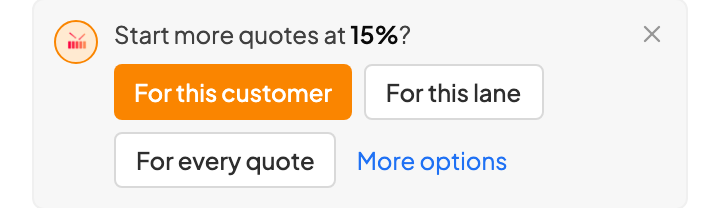
If a rule already set this quote's margin, Kit offers Update rule instead, to change that rule to your new number.
Kit doesn't offer to save a margin a rule can't have, such as a negative number or a percent of 100 or more. Type a fuel surcharge on a quote with a customer and Kit offers to save it as that customer's fuel rule. On a quote with a customer, change the format under Show: and Kit offers Save to fuel rule (or Update fuel rule if that customer's rule already sets a format). Dismiss Kit's message if you only want the change on this quote.
Each save shows a short confirmation, such as Saved 15% for Acme Shipper LLC., with an undo in case you clicked the wrong one.
FAQs
I set up my first rule. How do I change it to 12%?
On a quote the rule applied to, click the pencil next to Rule, type 12 and click Save rule. Or type 12 on the quote and click Update rule when Kit asks. From anywhere, go to profile menu > Settings and click the rule. Change a rule later, at the top of this page, has all three ways.
I changed the margin on one quote. Did that change my rule?
No. A number you type applies to that quote only. Your rule changes only if you click Update rule in Kit's message or edit it in Settings.
Is a 12% rule a markup or a margin?
Whichever your company uses. Settings and the quote use the same word: if the rule form says Markup, 12% is added on top of the buy; if it says Margin, 12% is your share of the sell. The tab and rule titles say margin either way. The table under Margin or markup above shows the math.
I don't see Settings in the profile menu.
Rules are in Outlook today. Front and the Chrome extension get them in an upcoming update. In the meantime, you can still save a default margin from the quote. See Set buy rate, margin and sell rate.
Can I set rules for my whole team?
Not yet. Rules are personal to each rep. To change the company default margin that everyone starts from, your Drumkit admin can email support@drumkit.ai.
My customer rule didn't apply.
Check that the quote's Customer field is filled in with that customer. Customer rules match on the customer picked on the quote, not on the sender's email address. A quote with no Customer can still match transport type and lane rules.
My lane rule didn't apply.
Lane rules match on DAT market areas. Check that the pickup or dropoff is inside the market on the rule, and that a more specific rule (a customer or transport type rule) didn't win. Check which rule a quote gets in Settings shows which rule a lane would get.
Why is the reply format set for me?
A customer fuel rule can set how replies show the price. Pick another option under Show: for just this quote, or edit the fuel rule to change it for every quote it covers.
Related